How to Generate a Receipt on Komier — Keep Your Records Clean and Your Tax Estimates Accurate

A receipt is more than a confirmation of payment — it is a financial record that feeds directly into your expense tracking, your net profit calculation, and your real-time tax estimate. In Komier, generating a receipt takes seconds and connects automatically to your broader financial picture.

This guide covers how to generate a receipt in Komier, what information to include, and why consistent receipt logging makes tax season significantly less painful.

Receipts in Komier — Two Use Cases

Komier’s receipt feature serves two distinct purposes, and it is worth understanding both:

  • It helps you generate a receipt for client after they pay you — a professional confirmation that payment was received for goods or services

  • It keeps a record of money coming in that updates your revenue totals, financial dashboard and your tax estimates.

Both flow through the same interface. The distinction is in how you use the resulting record — one is for your client, the other is for your own financial records.

Step-by-Step: Generating an Invoice on Komier

komier online receipt generator template

Step 1 — Open the Receipt Generator

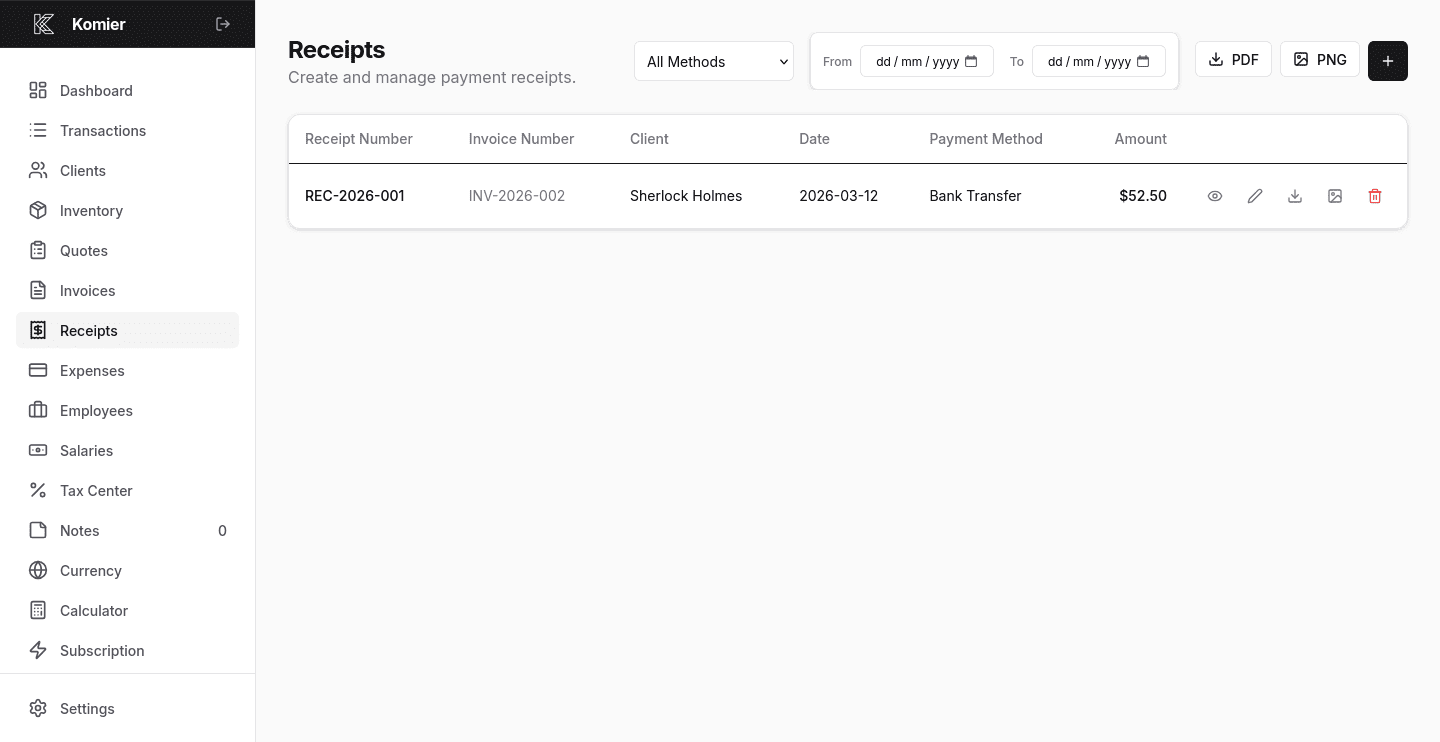
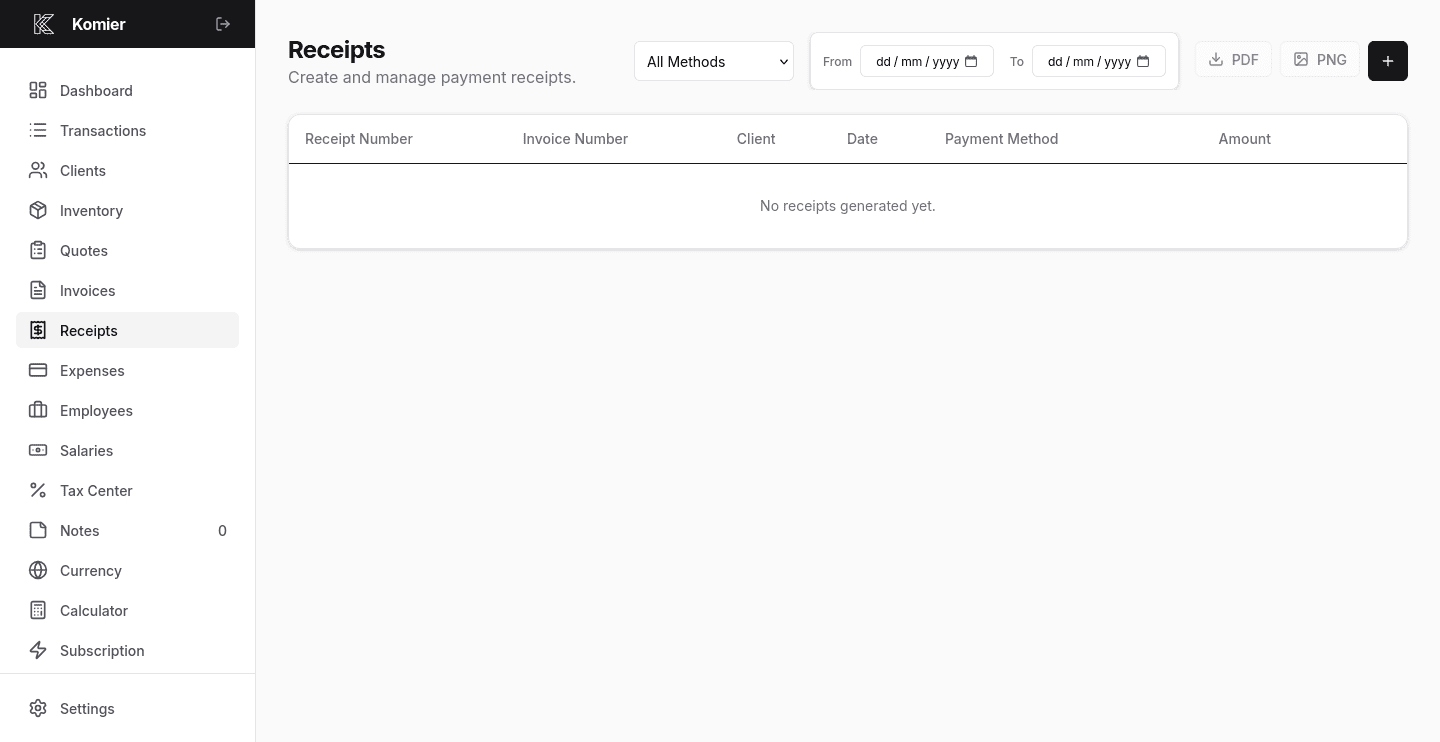
Select Receipts from the left-hand navigation menu in your dashboard.

komier online receipt generator template

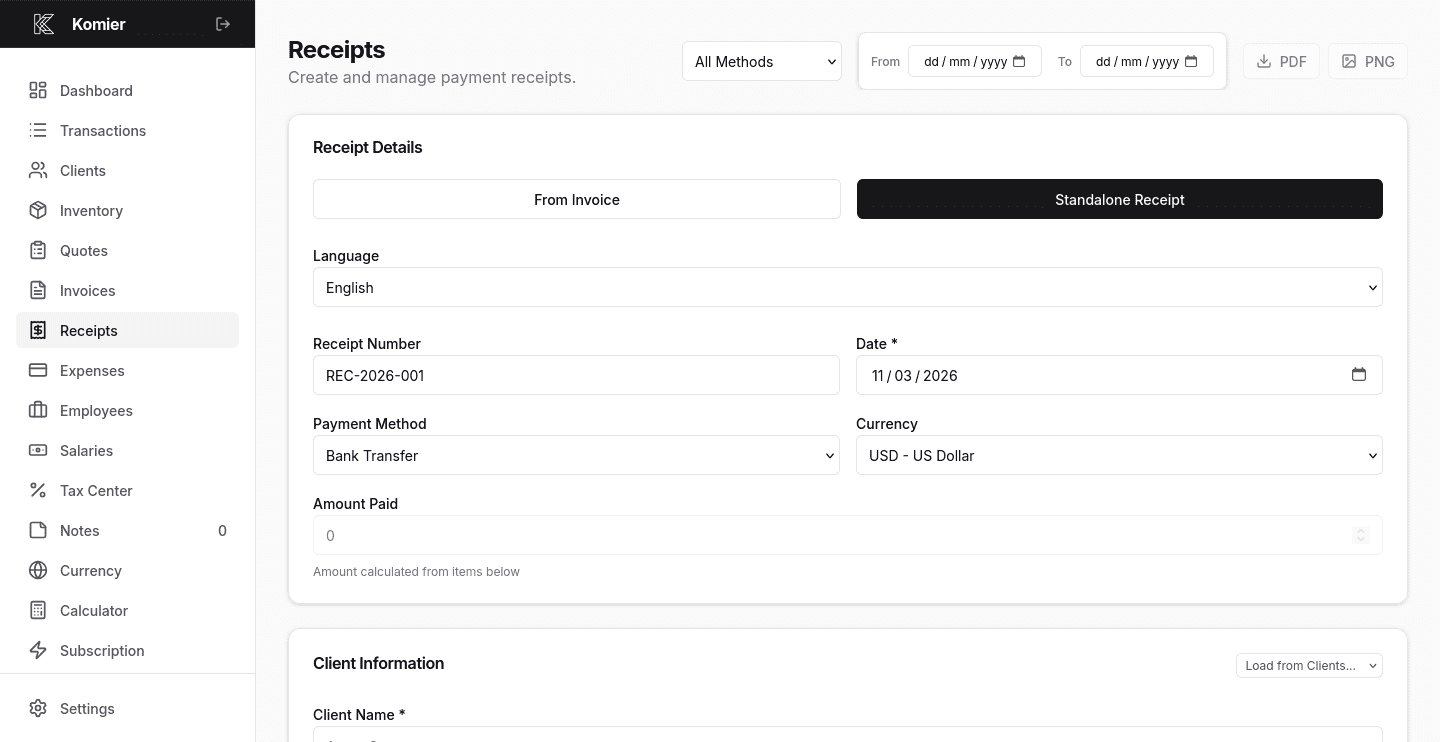
Step 2 — Add New receipt

Click on the + button to open a blank receipt form.

Select From Invoice if you already have an invoice recorded which will automatically fill the rest for that client.

Otherwise if it’s a new client select Standalone Receipt

  • Komier defaults to today’s date for the invoice date.
  • Select the Payment Method and Currency.
  • Fill the Amount Paid. If the client is making a partial payment, this will automatically update the status of the linked invoice to PARTIAL under the Invoice Generator for that amount paid.

Komier calculates everything and adds it to the total automatically.

komier online receipt generator template

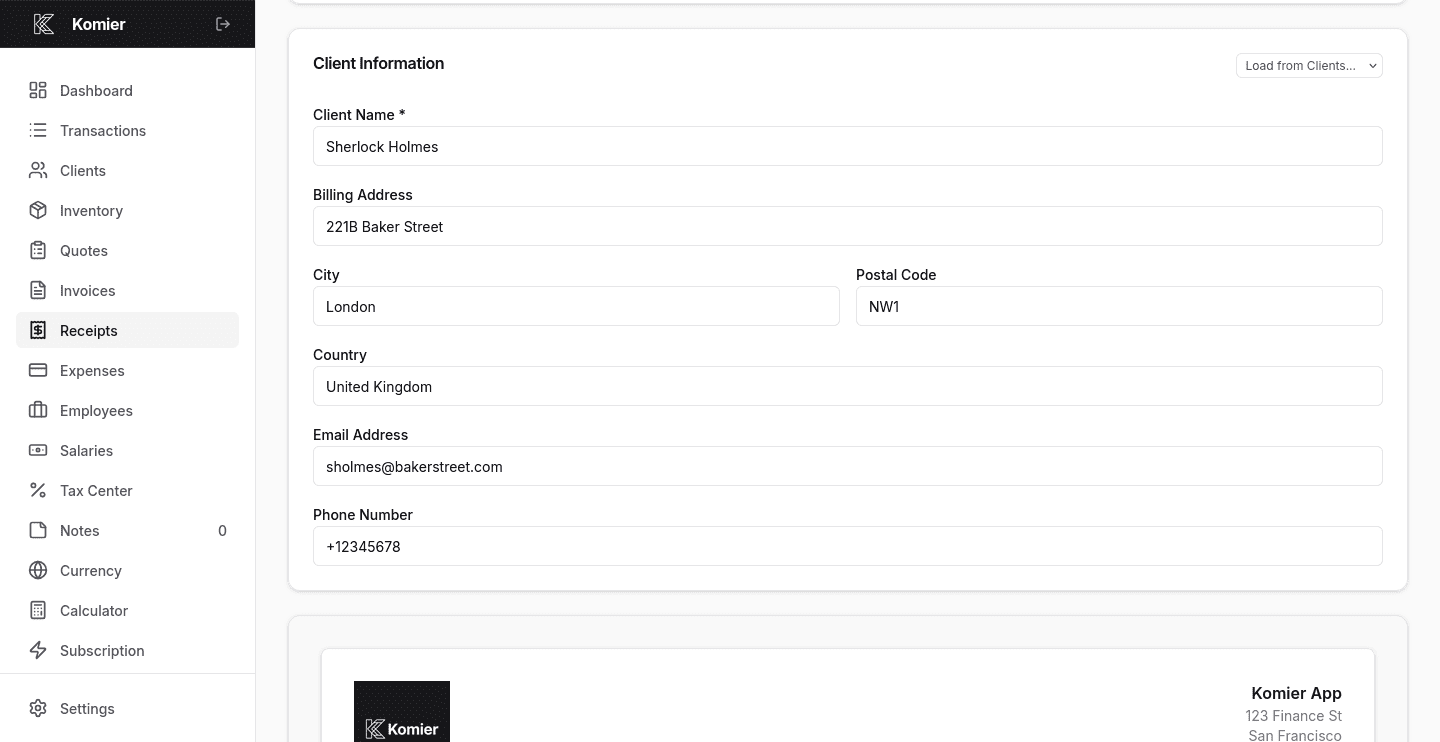
Step 3 — Select or add your client

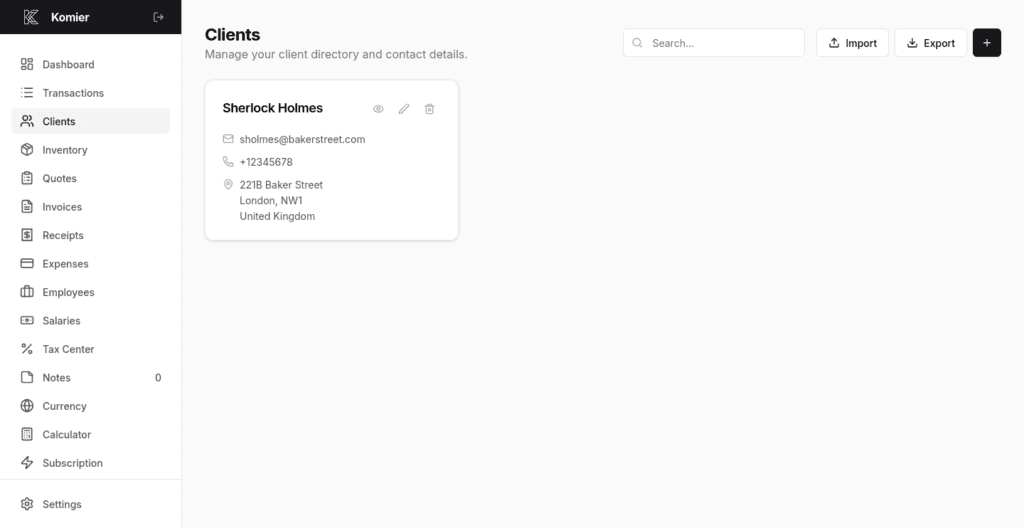
Select the client from your saved client list or add a new one. All client details — name, billing address, email — populate automatically from your client directory.

komier online receipt generator template

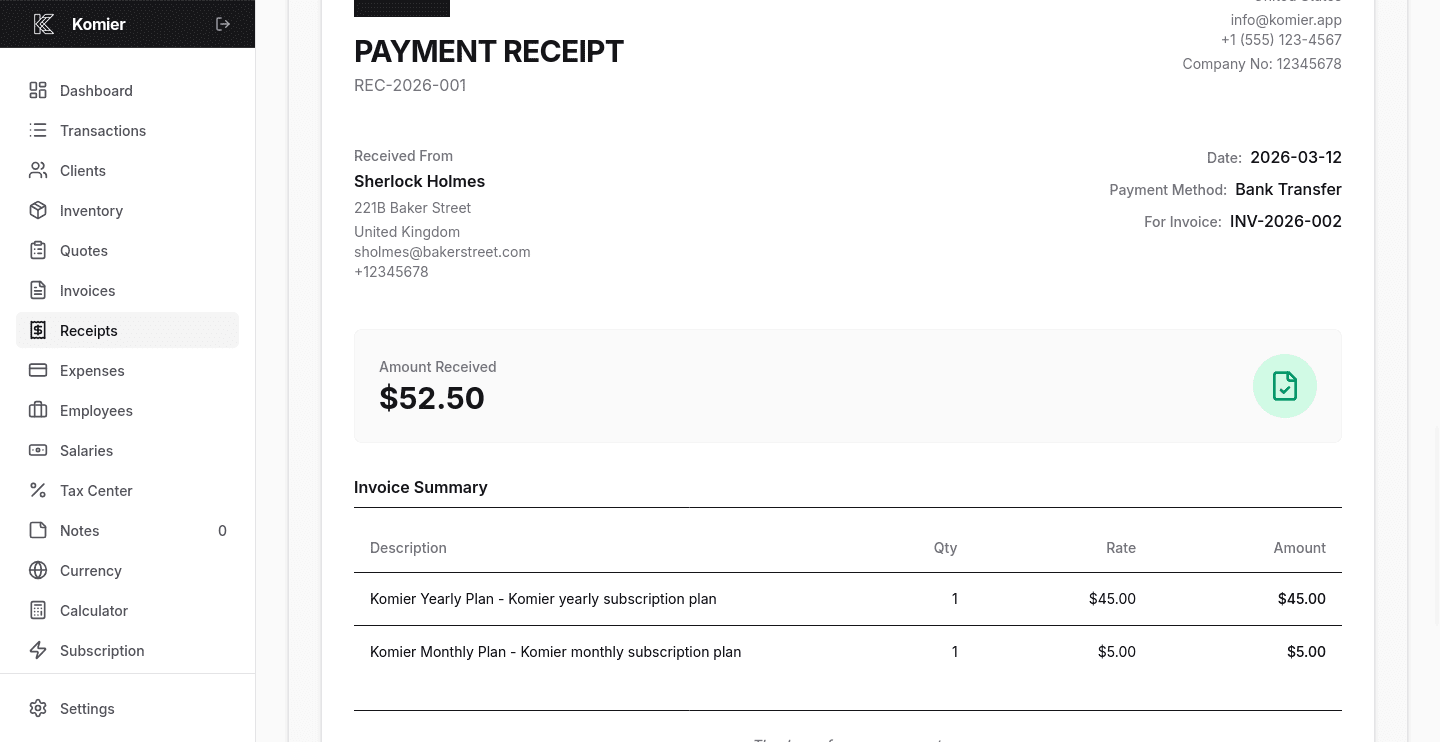
Step 4 — Add your services or products from inventory

Describe the items that were purchased or paid for.

if you already have an invoice recorded Komier will automatically fill the line items.

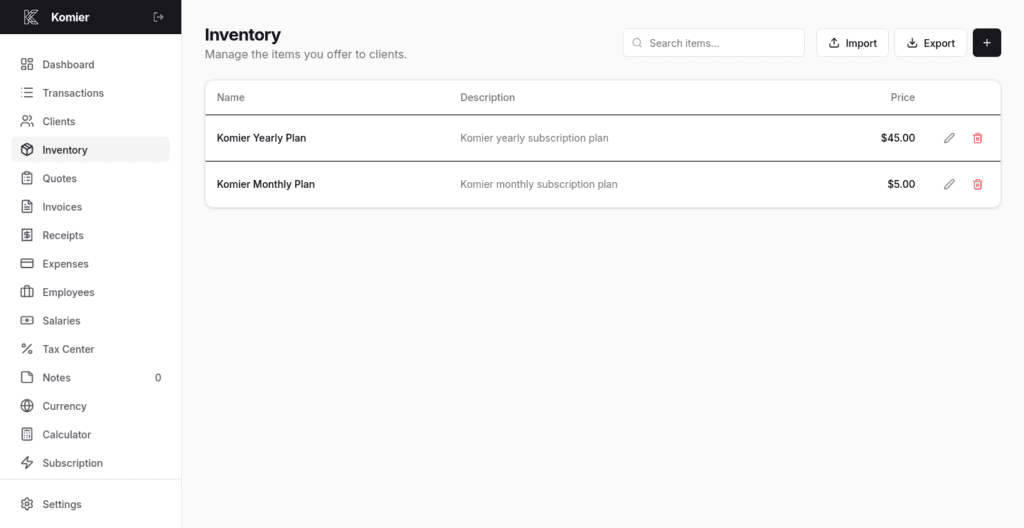
If issuing a standalone receipt, pull from your saved inventory items.

komier online receipt generator template

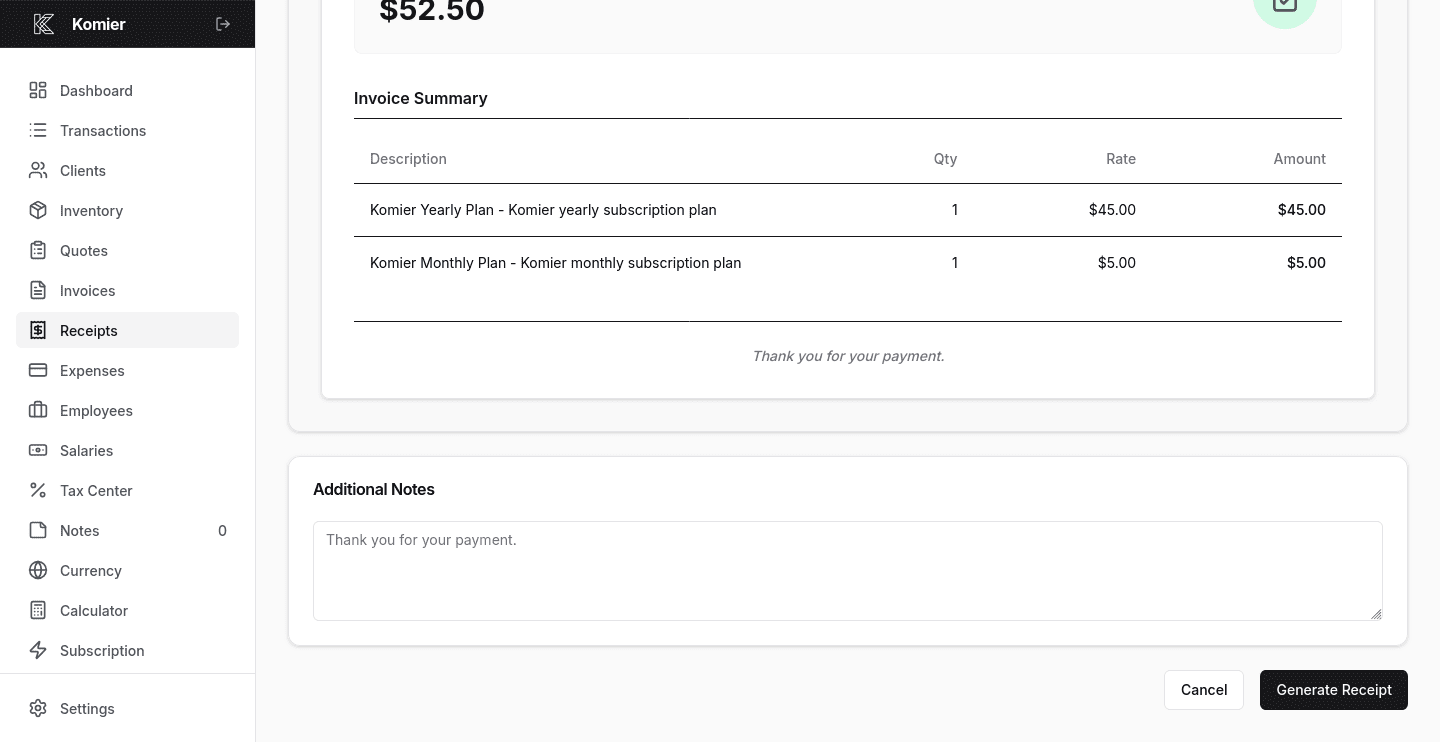
Step 5 — Add notes, conditions, payment terms, and Generate

Use the Notes field to include any reference numbers, payment method, or relevant context.

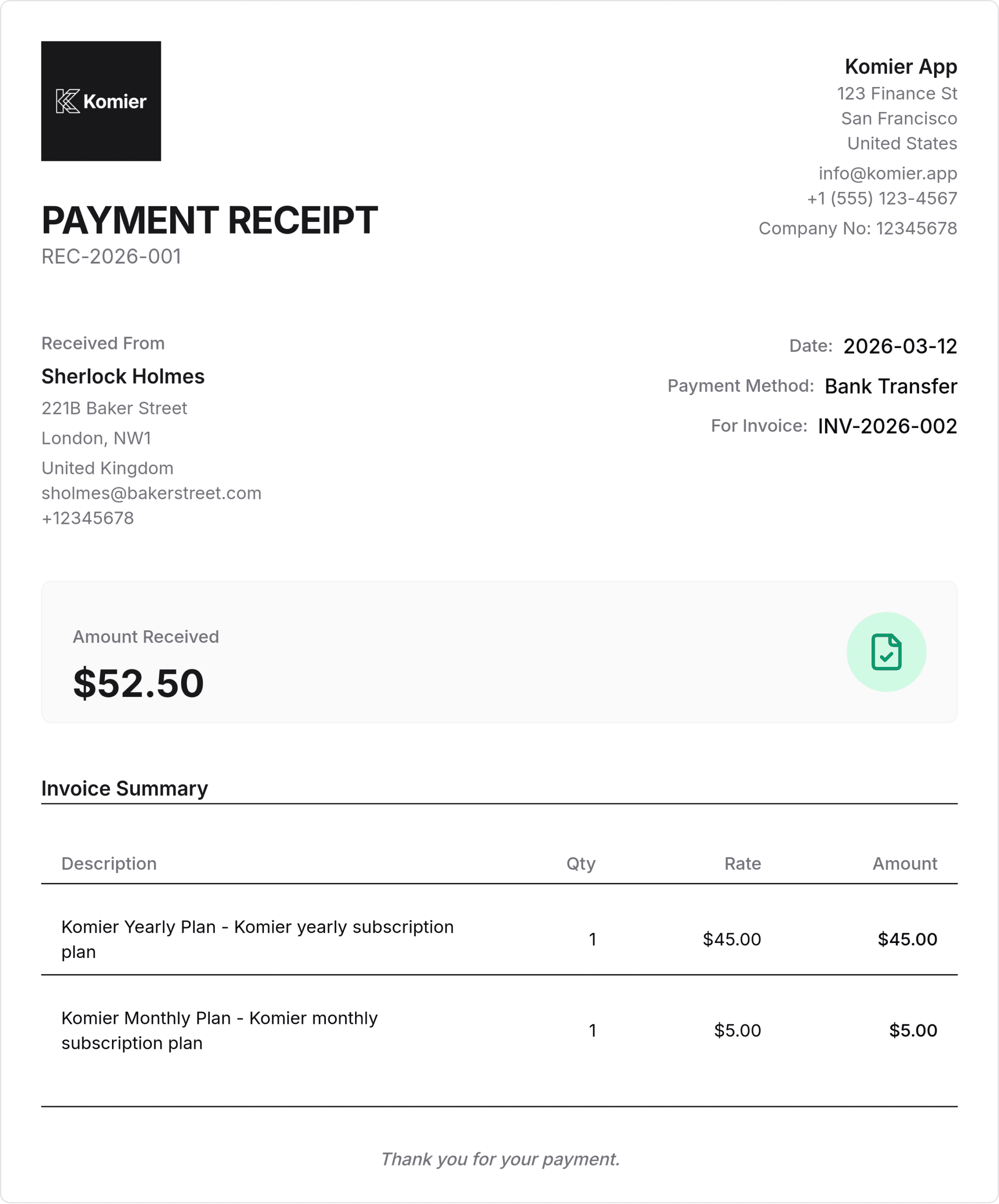
When done, click Generate, and it is ready for download.

komier online receipt generator template

Pro Tip: Log every receipt as it happens — not at the end of the month. Real-time logging means your dashboard is always accurate and you are never hunting for missing records when tax time comes.

Exporting and Sharing Receipts

komier online receipt generator template

All receipts in Komier can be exported as high-quality PDF or PNG files with a single click. For client-facing receipts, this means a professional document you can email directly.

Komier retains all your receipts in your account history, filterable by date range, or payment method — so finding a specific transaction from six months ago takes seconds, not minutes of searching through email threads.

Start logging receipts and taking control of your records.

Start your free 3-day trial — full access, no credit card required.

Scroll to Top