How To Add Clients On Komier And Save Hours Every Month

Every invoice you will ever send in Komier starts with a client. Adding your clients once — properly, with their full details saved — means you never have to type their name, address, or contact information again. One click and they are in your invoice. That is the Komier way.

This guide walks you through adding a client to Komier, what information to include, and how your client records connect to the rest of the platform.

Why Client Management Matters

Most freelancers and small business owners waste significant time on repetitive data entry. Every invoice, every receipt issued to a client — you are retyping the same information from memory or copy-pasting from a spreadsheet. Multiply that across 10 or 20 clients and dozens of invoices per month, and the time loss adds up fast.

Komier's client management system eliminates this entirely. Save a client once, and their data is available across your entire account — invoices, receipts, and financial reports — instantly.

Step-by-Step: Adding a Client on Komier

komier online client management

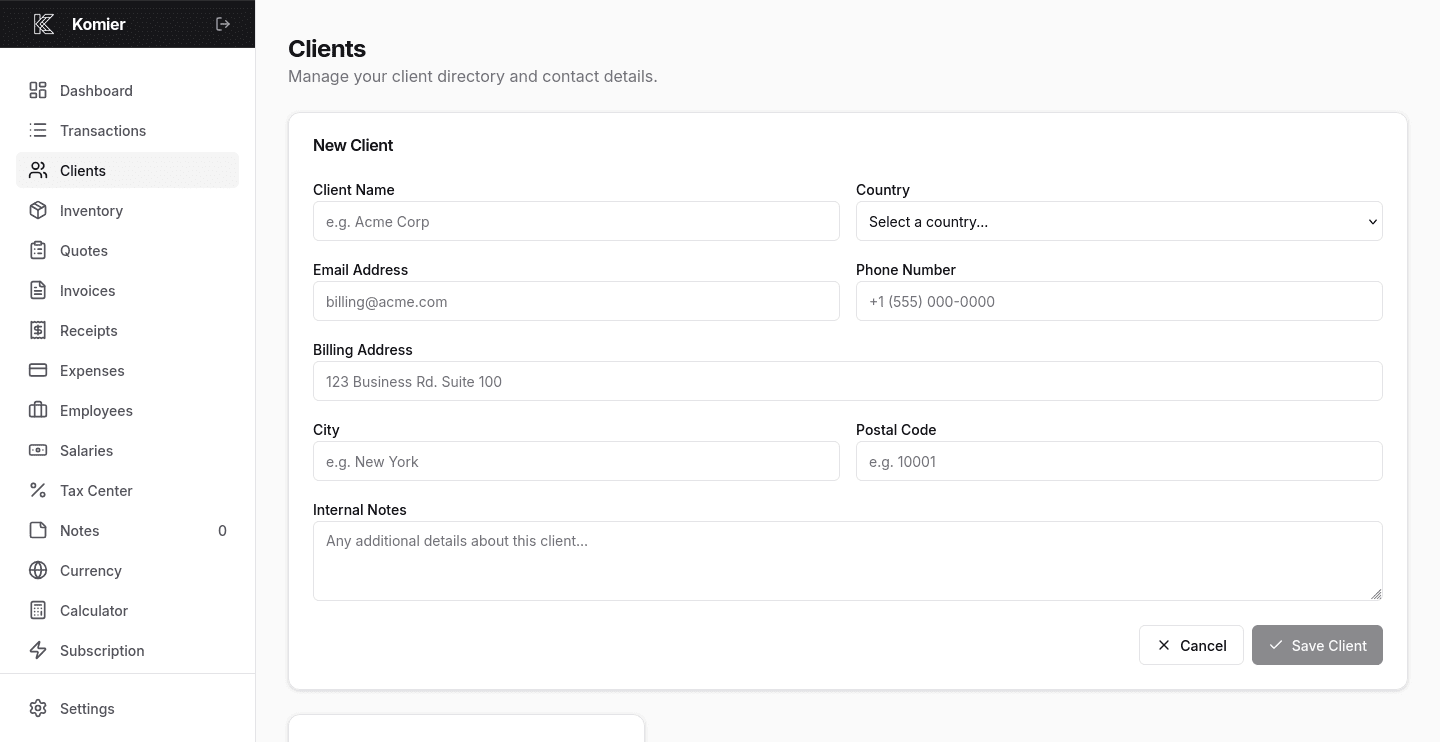
Step 1 — Open the Clients Page

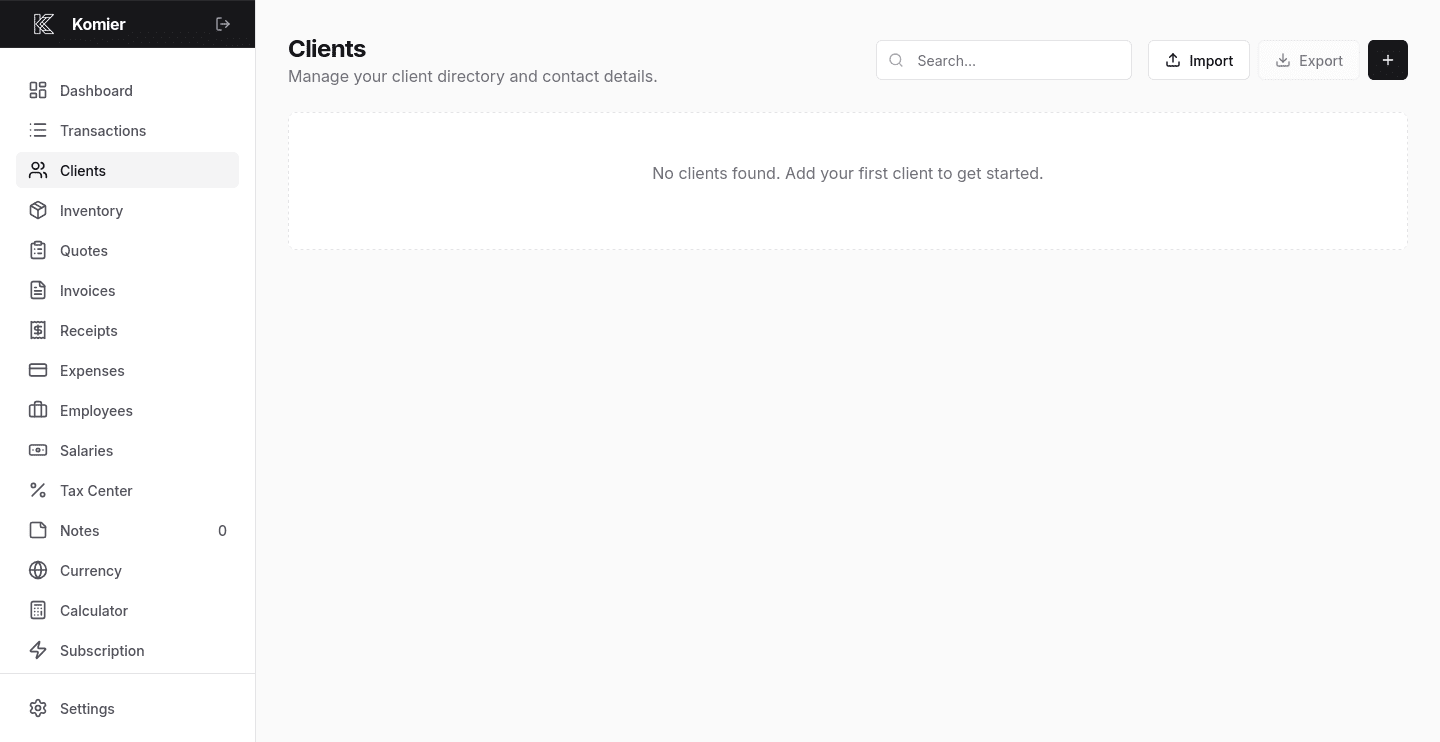
From your main dashboard, select Clients in the left-hand navigation menu.

komier online client management

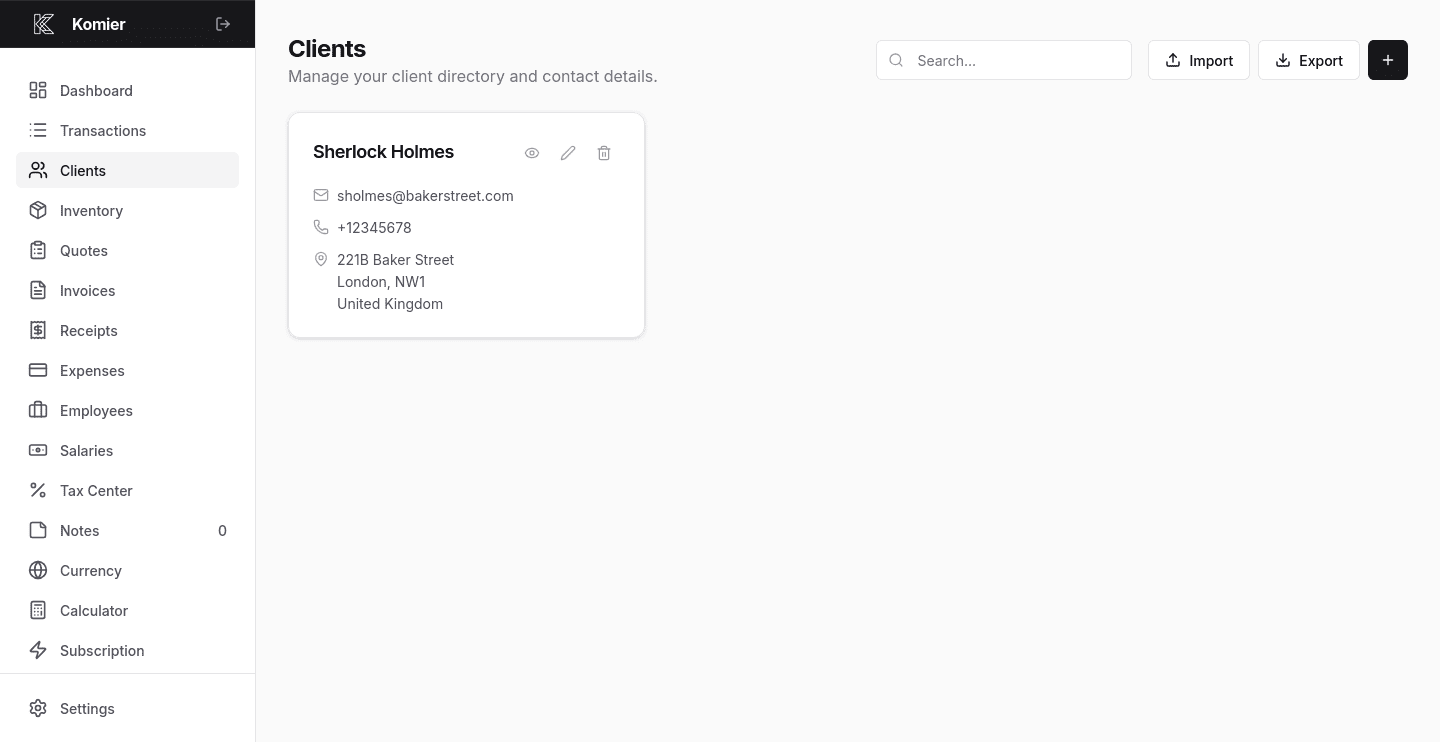
Step 2 — Add New Client

Click on the + button at the top of the Clients page.

komier online client management

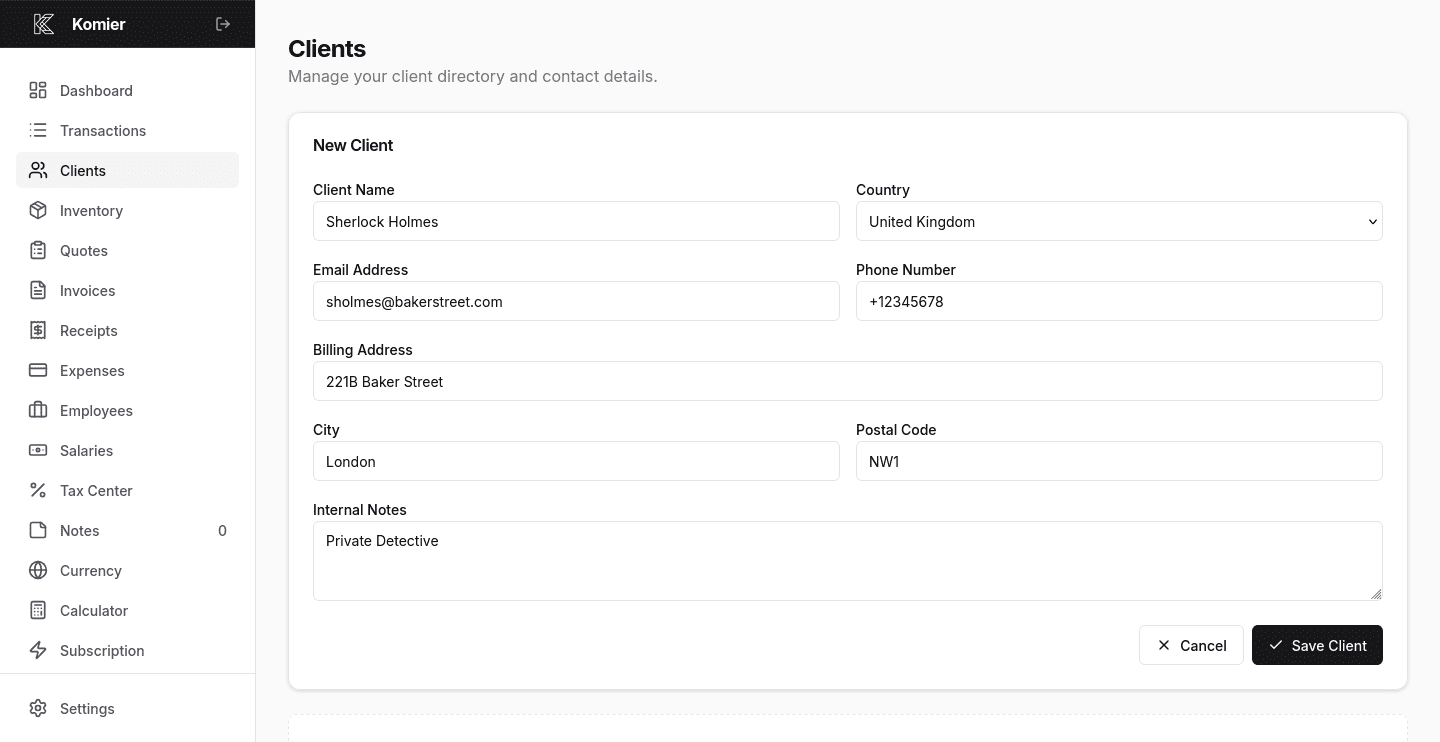
Step 3 — Fill The details of the Client

  • Client Name is the name that will appear on all invoices and receipts generated for this client. For businesses, use the official company name.
  • Include billing address, city, country, and any postal code. This appears on invoices automatically.
  • Phone number, email address, and any additional notes your client uses for their own records.

What Happens After You Save a Client

komier online client management

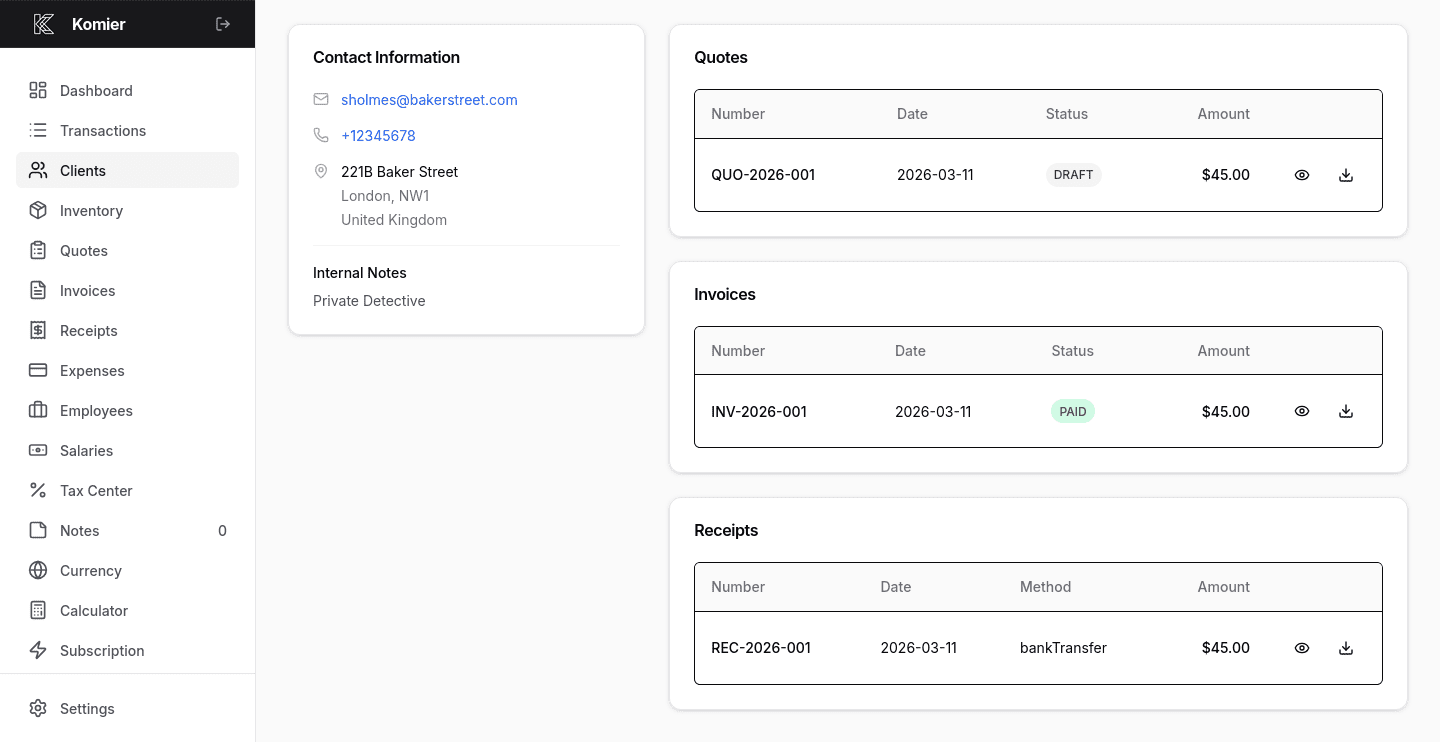
Once a client is saved in Komier, they appear as a selectable option every time you create an invoice. Instead of typing their details, you simply choose their name from a dropdown and all their information fills in automatically — name, address, contact details, everything.

Your client records also feed into your transaction history and financial dashboard. When you mark an invoice as paid, that payment is attributed to the client in your ledger, giving you a clear view of which clients generate the most revenue over time.

Managing and Updating Client Records

Client details change. Companies move, email addresses update, billing contacts rotate. In Komier, you can edit any client record at any time by returning to the Clients section and selecting the client you want to update. Changes apply immediately to all future documents — existing invoices retain the details they were generated with.

Connected Features

Your client directory is the starting point for several other Komier workflows:

  • Quote Generator — select a saved client to auto-fill all recipient details

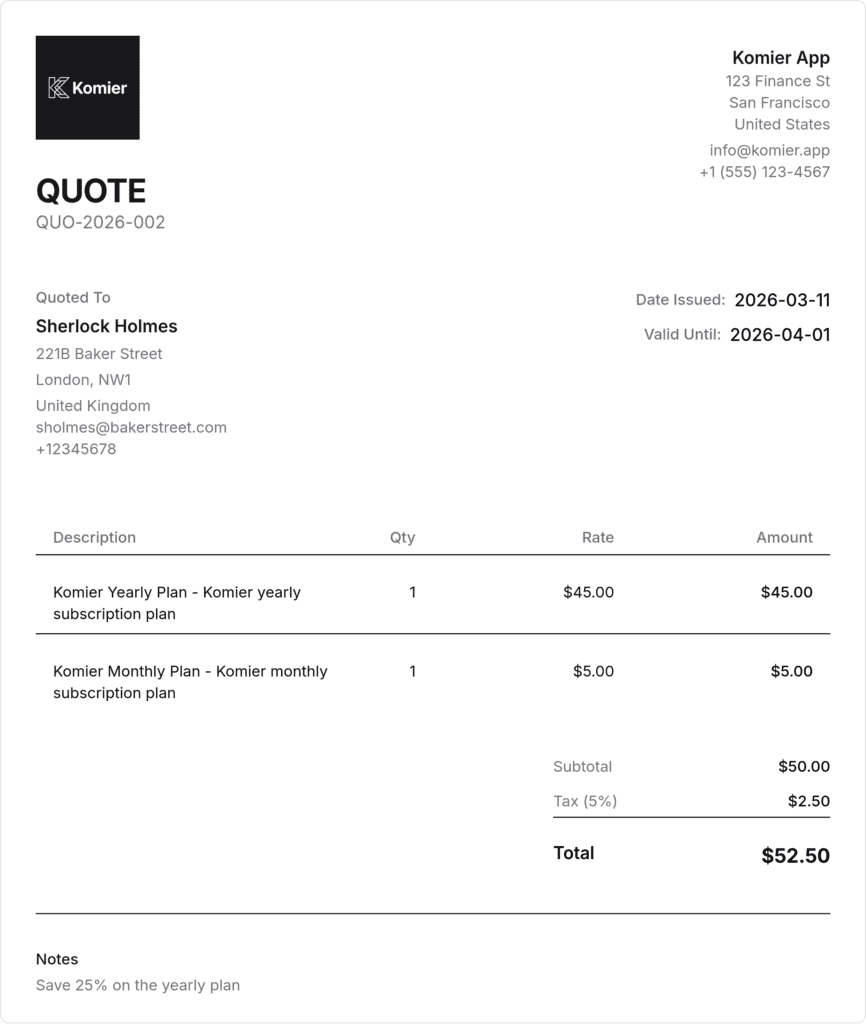
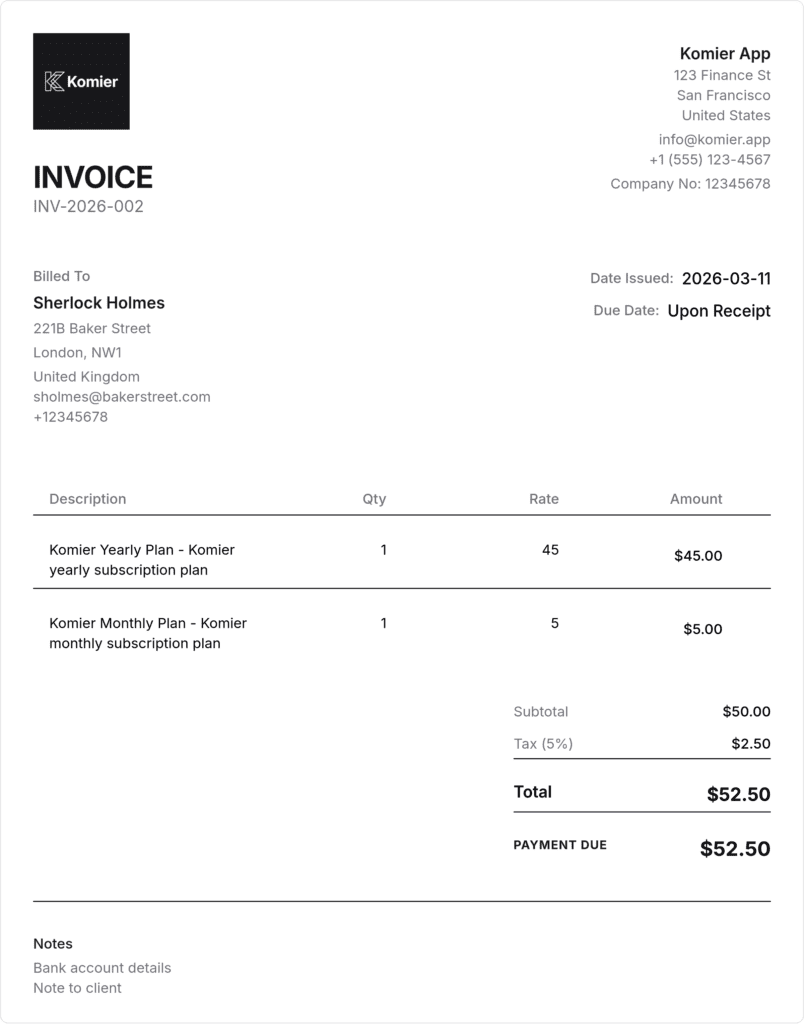
  • Invoice Generator — generate an invoice from the saved client’s quote
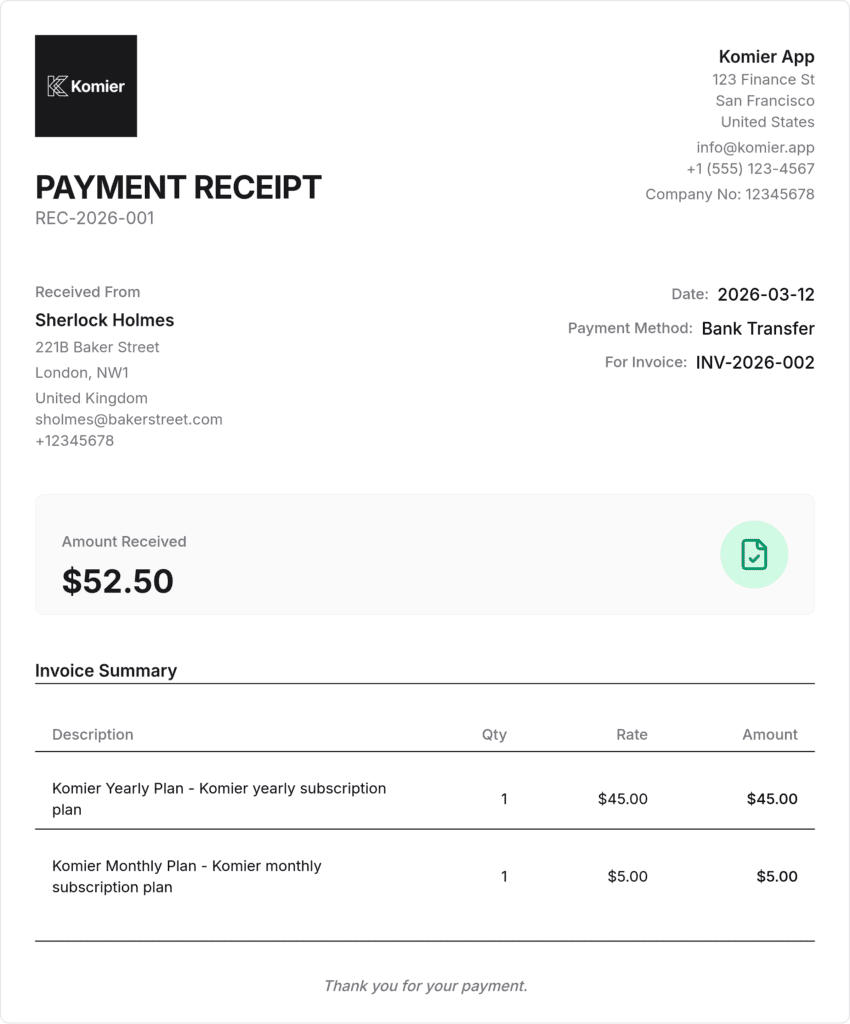
  • Receipt Generator — issue receipts to saved clients in seconds

Ready to add your first client?

Start your free 3-day trial — full access, no credit card required.

Scroll to Top