How to Add Expenses on Komier — Track Every Cost and Know Your Real Profit

Knowing your revenue is easy — it is right there on your invoices. Knowing your actual profit requires tracking your expenses with the same discipline. Every cost you log in Komier updates your net profit in real time and feeds directly into your tax estimate. Miss an expense, and you are overestimating your profit and potentially overpaying your taxes.

This guide walks through how to add expenses in Komier and why consistent expense tracking is one of the most important financial habits a small business owner can build.

What Counts as a Business Expense?

Any cost incurred in the course of running your business is a business expense. Common categories for solopreneurs and SMEs include:

  • Software and subscriptions — tools, platforms, and services you pay for monthly or annually

  • Office costs — rent, utilities, internet, and equipment

  • Travel — transport, accommodation, and related costs for business purposes

  • Meals and entertainment — client lunches, team meals, and relevant entertainment costs

  • Marketing — advertising spend, design work, and promotional materials

  • Professional services — accountant fees, legal costs, and consultant invoices

  • Salaries and payroll — staff costs logged separately through the Salaries module but reflected in your expense totals

  • Cost of goods sold — materials, stock, and production costs for product-based businesses

Step-by-Step: Adding an Expense on Komier

komier online expenses management

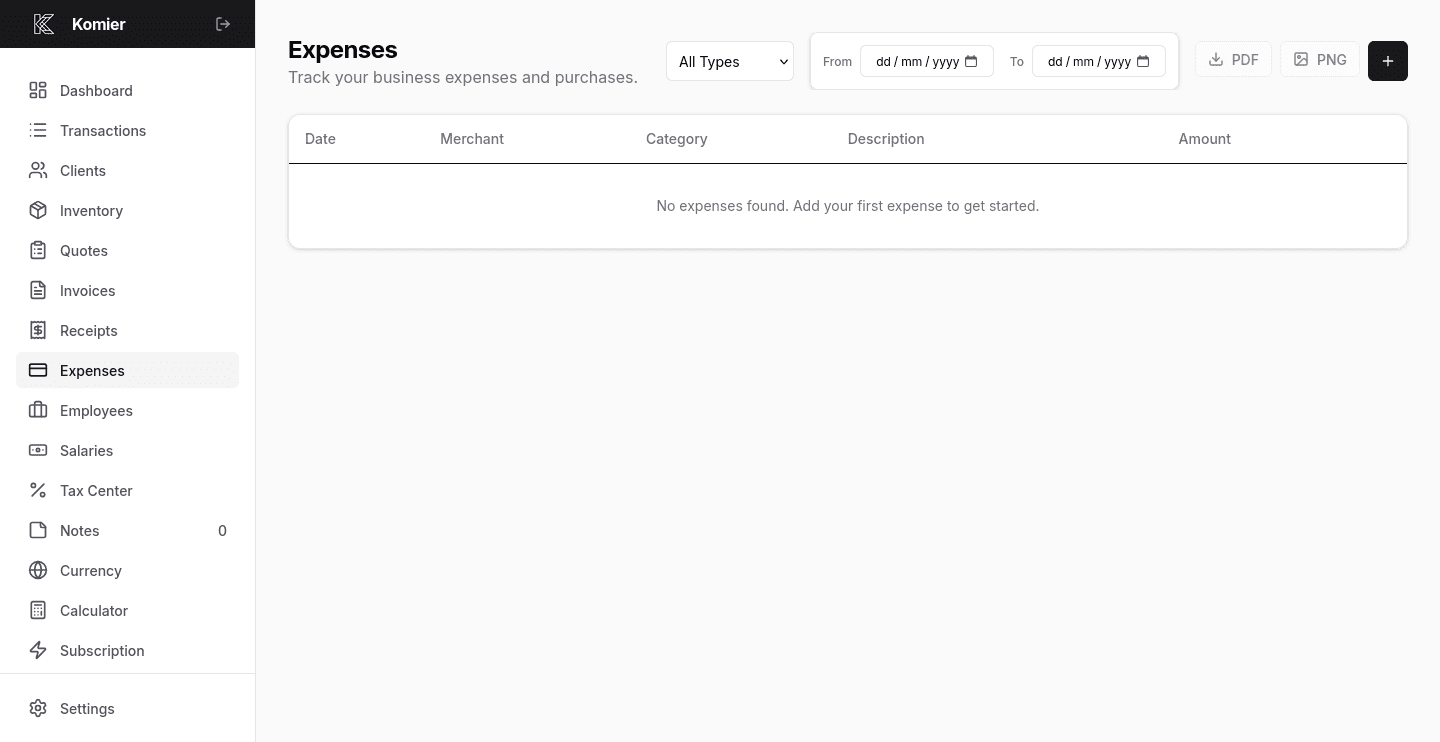
Step 1 — Open the Expenses Management

Select Expenses from the left-hand navigation menu in your dashboard.

komier online expenses management

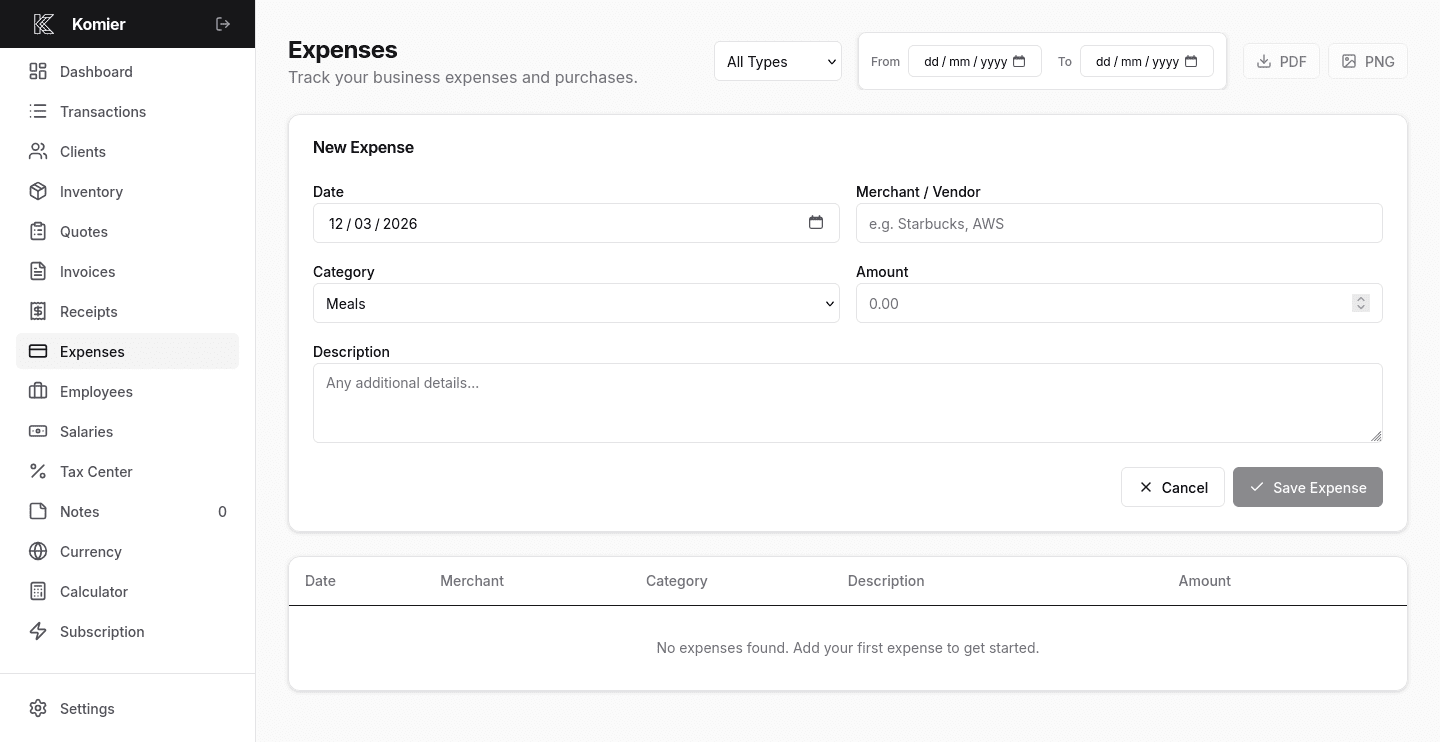
Step 2 — Add New Expense

Click on the + button to open a blank expense form.

komier online expenses management

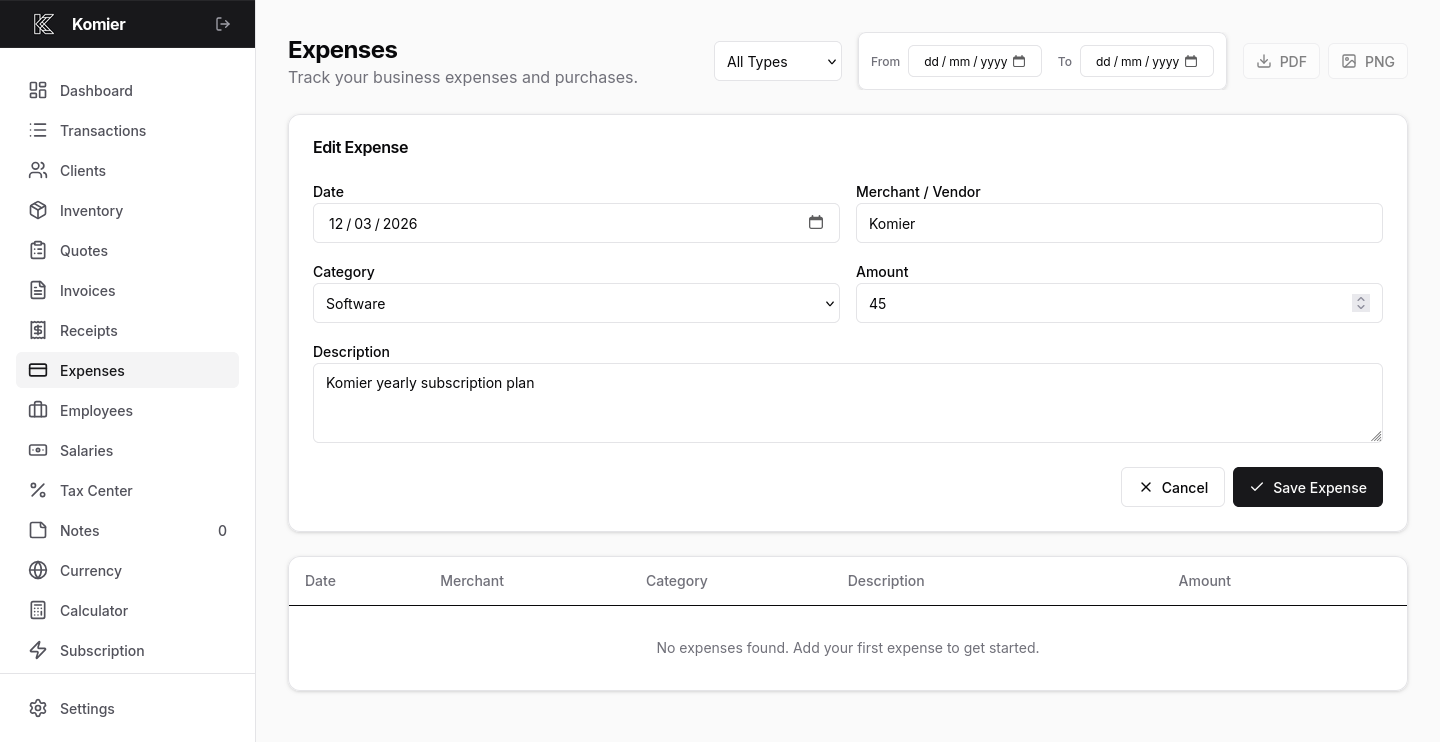
Step 3 — Fill the Expense details

  • Enter the date the expense was incurred. Komier defaults to today but any date can be entered.
  • Input the Merchant/Vendor name.
  • Choose from your expense categories — software, travel, office, marketing, and so on. Categories feed into your financial reports and help you understand where your money goes.
  • Input the total cost of the expense in the appropriate currency.
  • Describe the expense clearly — ‘Komier yearly subscription — 2026’ is more useful than just ‘Software’.
komier online expenses management

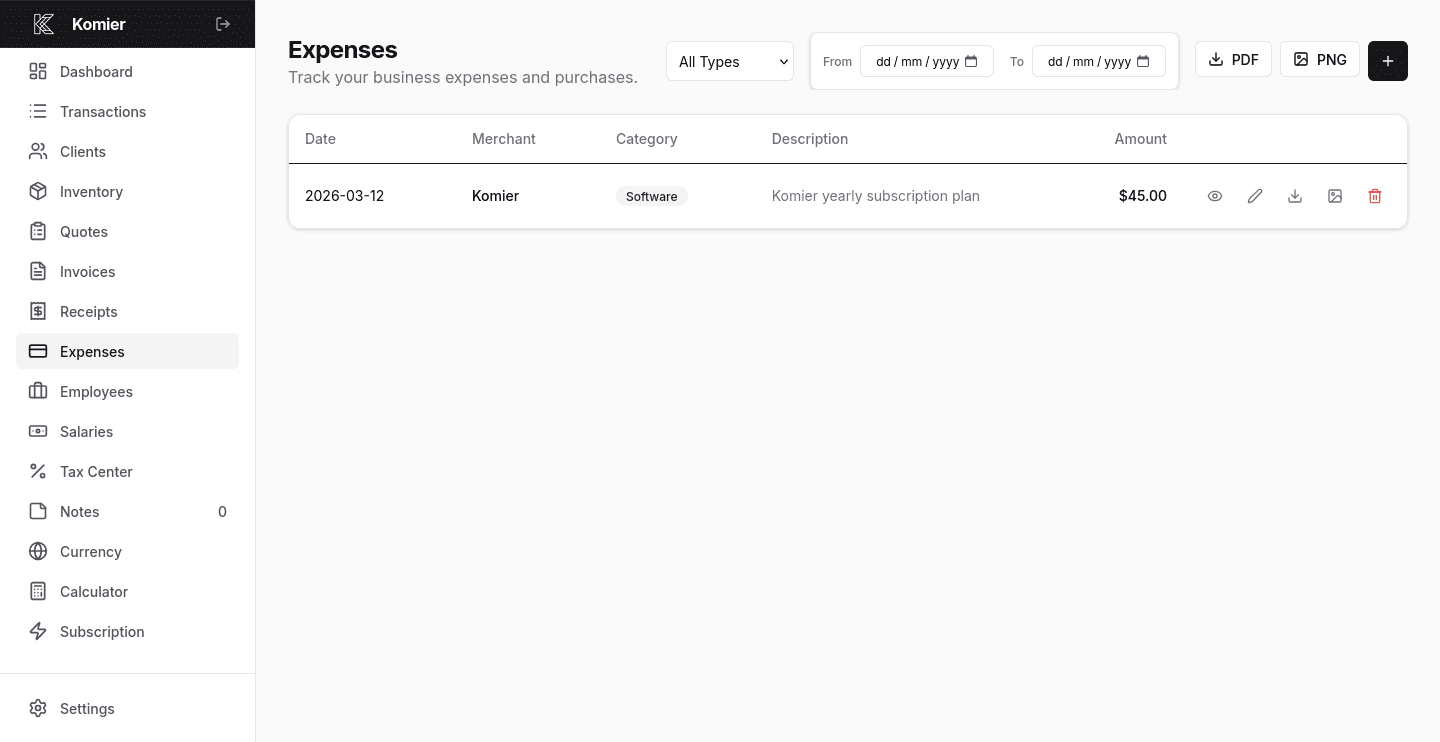
Step 4 — Save & Export

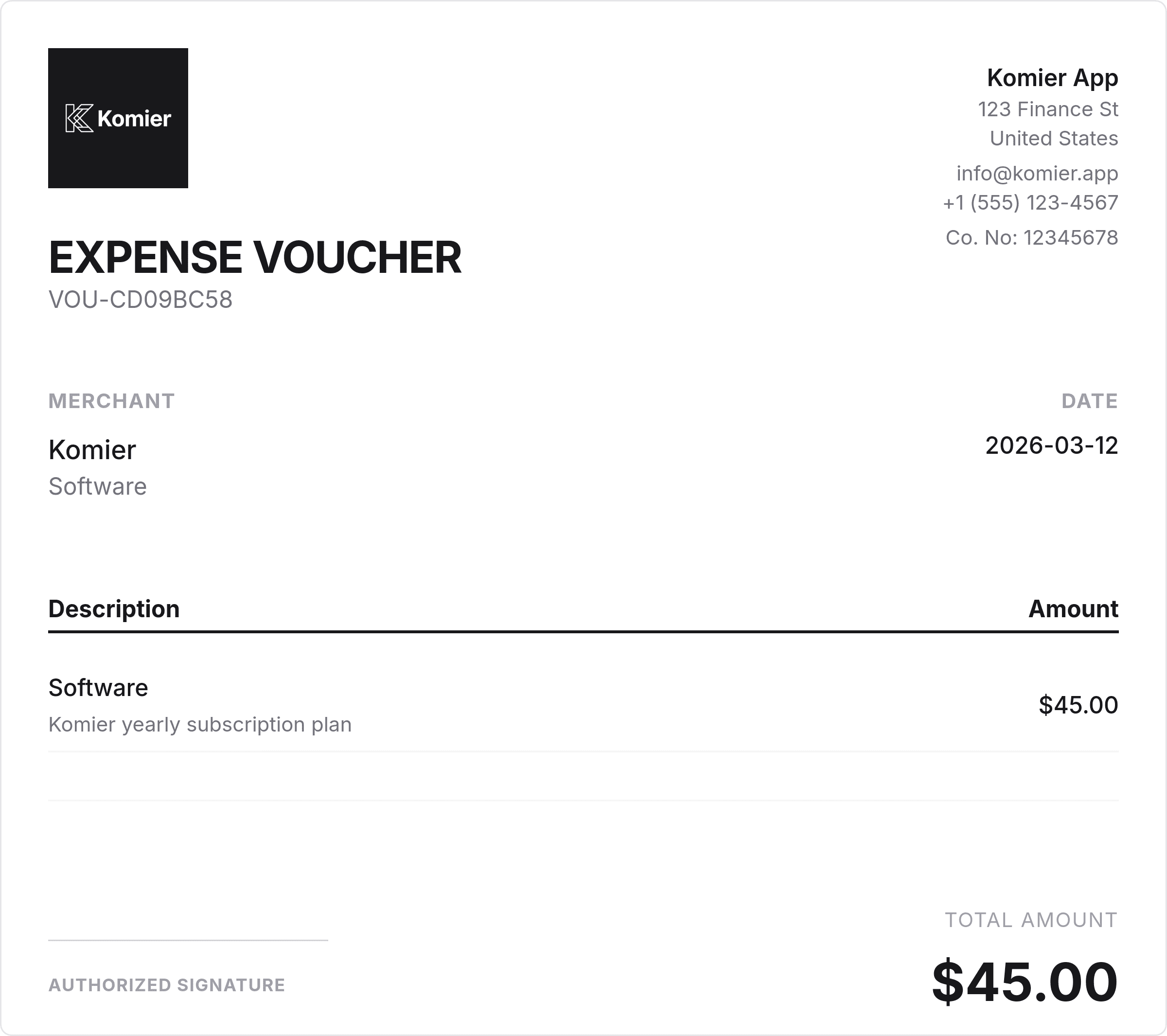
Click Save. The expense is recorded immediately in your transaction ledger and your dashboard updates in real time.

Export in PDF or PNG if you need a copy of it.

Pro Tip: Log expenses as they occur rather than in batches at the end of the month. Real-time logging means your net profit and tax estimate on the dashboard are always current — and you are far less likely to forget a cost.

komier online expenses management

How Expenses Connect to Your Dashboard

Every expense you add in Komier flows directly into your Financial Pulse dashboard:

  • Your Expenses total increases immediately

  • Your Net Profit figure decreases to reflect the new cost

  • Your Estimated Tax in the Tax Center recalculates based on the updated net profit

This live connection between expense logging and your dashboard is what makes Komier a real-time financial tool rather than a static record-keeper. You are not waiting until month end to understand your financial position — you can see it at any moment.

Start tracking your expenses and know your real profit.

Start your free 3-day trial — full access, no credit card required.

Scroll to Top