How to Add Items to Inventory on Komier — Products, Services, and Everything You Bill For

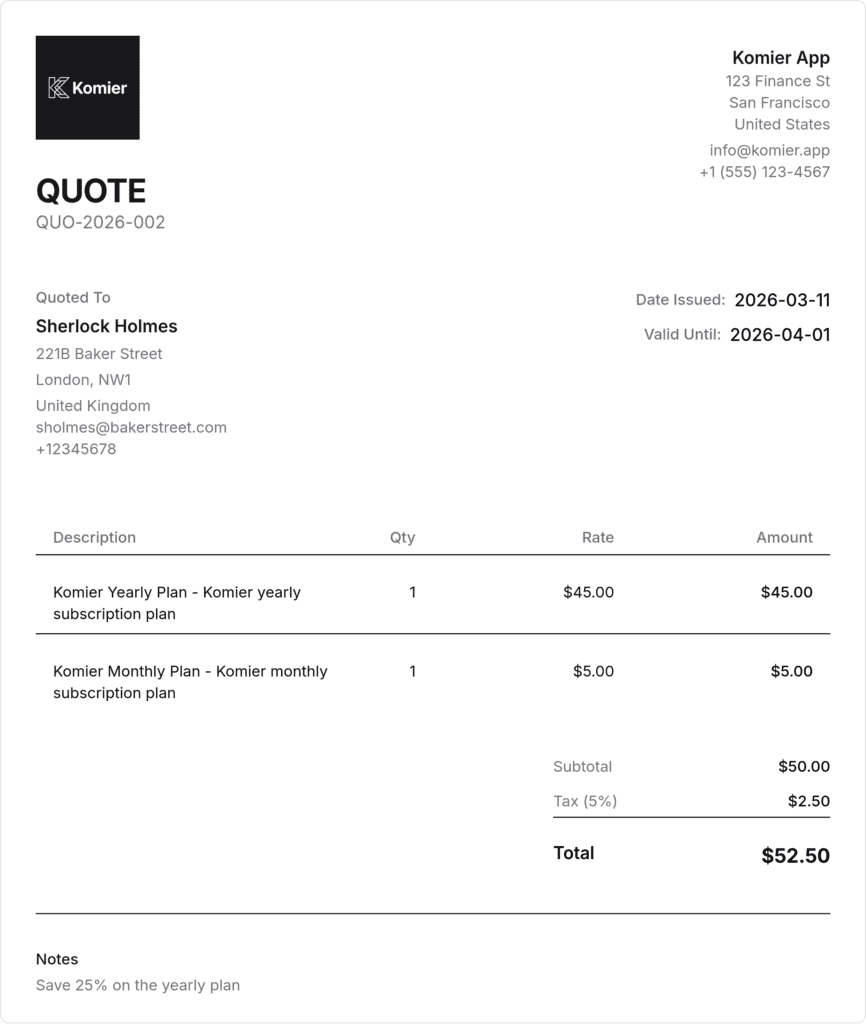
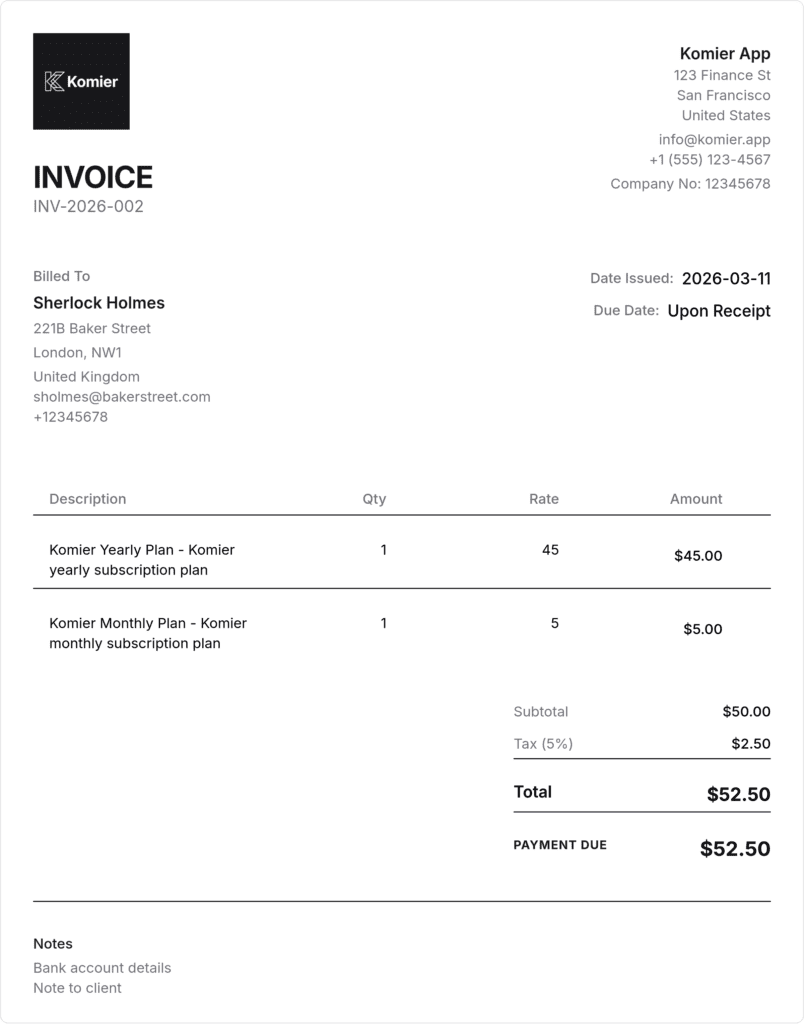
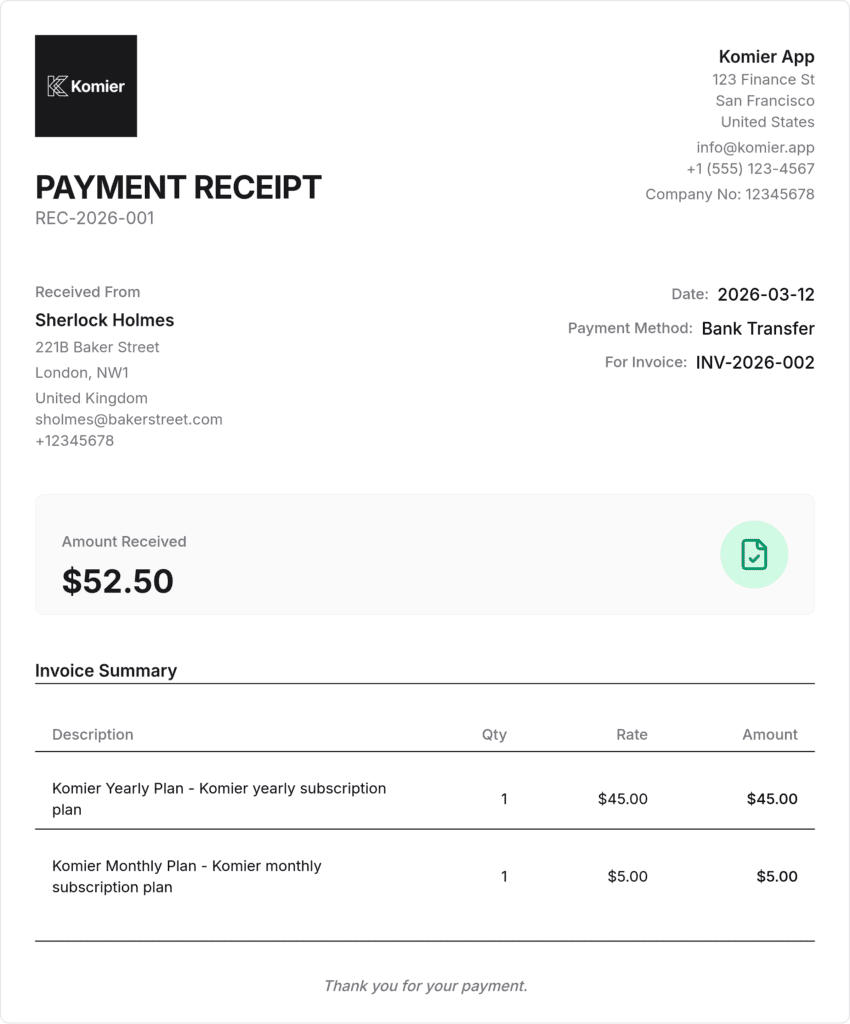
Every product you sell and every service you offer can be saved in Komier’s inventory. Once saved, these items appear as selectable line items when you create an invoice ore ceipt — no retyping, no looking up prices, no manual formatting. Select, add, done.

This guide explains how to add items to your Komier inventory, what information to include, and how inventory connects to your invoicing workflow.

What Is the Komier Inventory?

Komier’s inventory is not a stock management system in the traditional sense — it is not designed to track quantities on a warehouse shelf. It is a saved library of everything you bill for, organised so that invoice creation becomes a matter of selecting items rather than describing them from scratch every time.

This works for both physical product sellers and service providers. A graphic designer can save “Logo Design Package” as a service item at a fixed rate. A retailer can save individual products with their unit prices. A consultant can save different service tiers. Whatever you bill for, it belongs in your inventory.

Step-by-Step: Adding an Item to Inventory

komier online inventory management

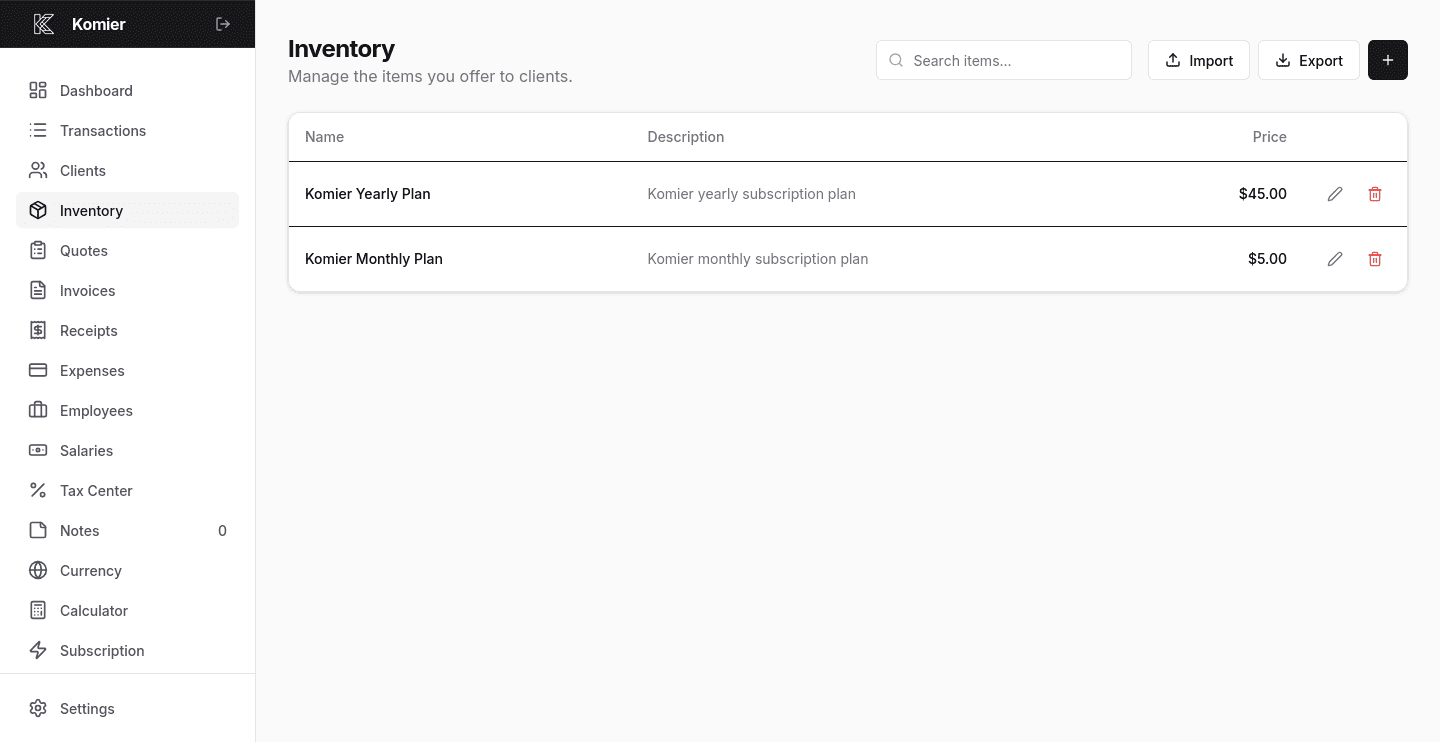
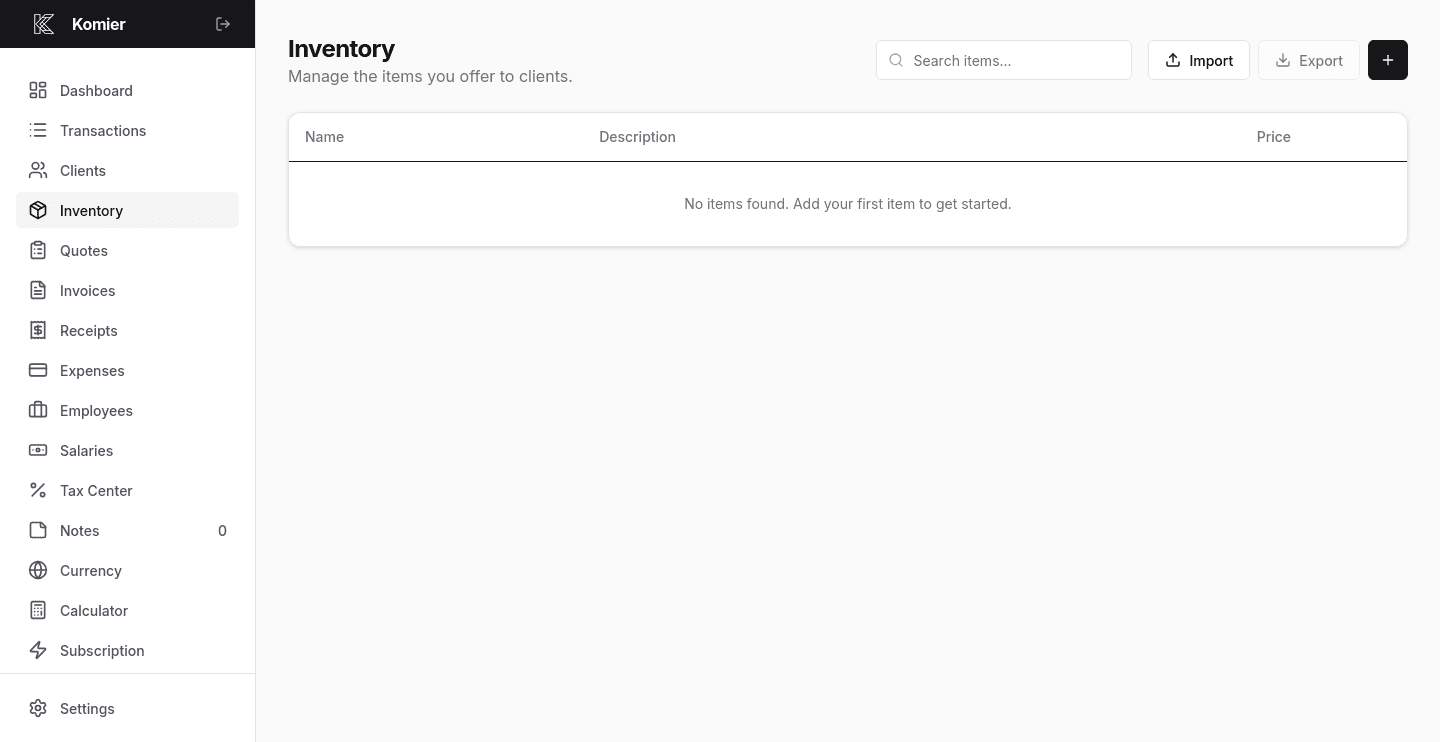
Step 1 — Open the Inventory

Select Inventory from the left-hand navigation in your Komier dashboard.

komier online inventory management

Step 2 — Add New Item

Click on the + button at the top of the Inventory page.

komier online inventory management

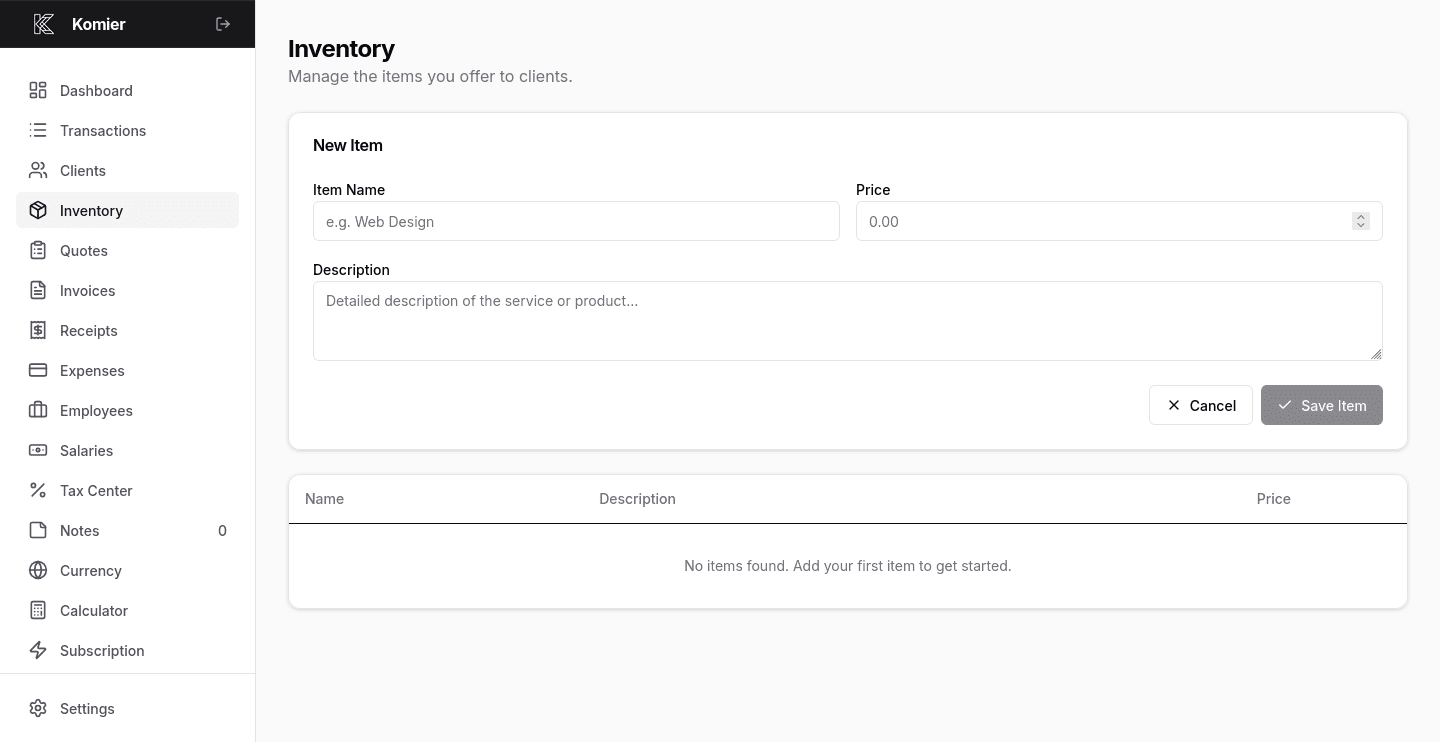
Step 3 — Fill The details

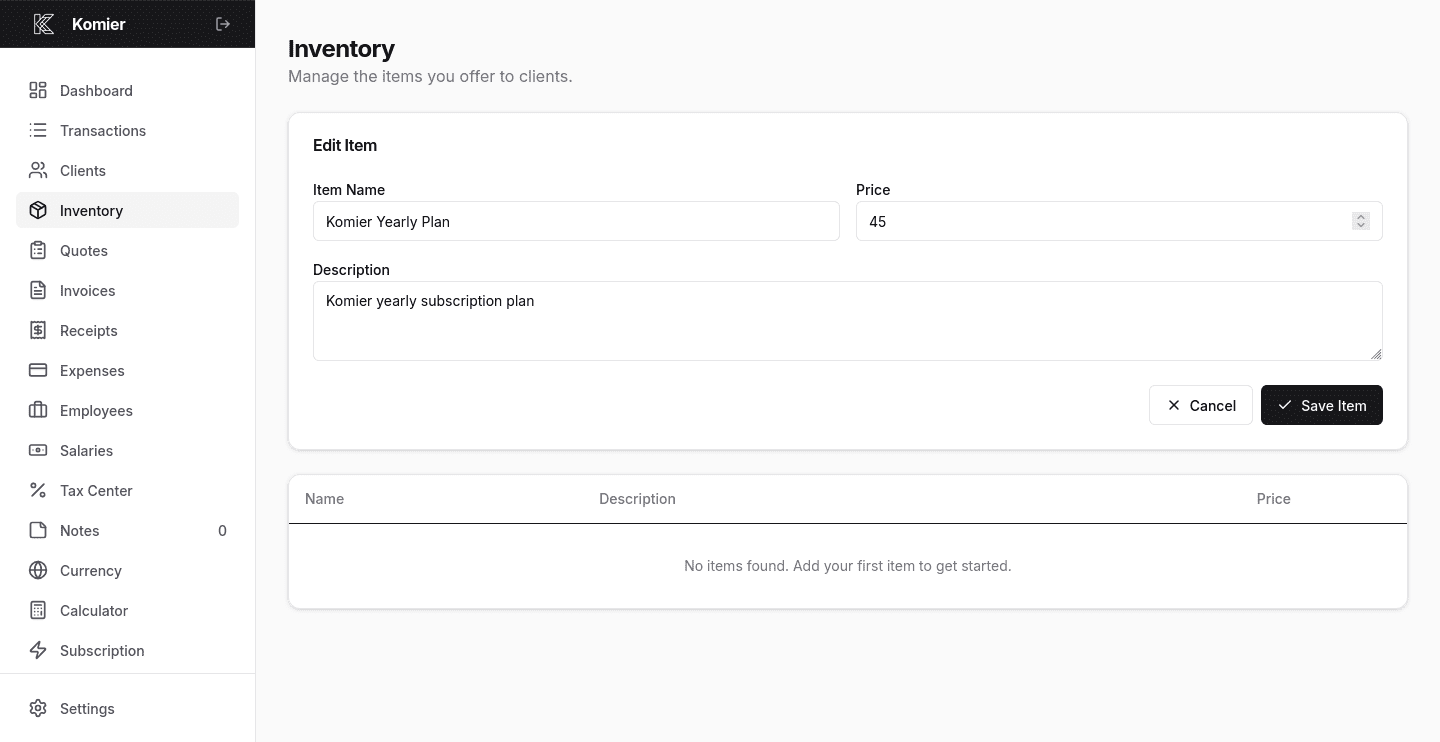
Fill in the details of the Item.

    • Item Name is what appears on your invoices. Use a clear, descriptive name. For services, be specific: ‘Social Media Management — Monthly Retainer’ is better than ‘Services’.

    • A short description gives your client context on the invoice. For products, include key specifications. For services, briefly describe what is included.

    • Enter the default price for this item. This auto-fills when you add the item to an invoice — you can always override it for a specific invoice if needed.

    • Click Save. The item is now available across your entire account and will appear as a selectable option in the invoice generator.

Pro Tip: Build your inventory before you start invoicing. Spend 15 minutes adding all your standard products and services, and every invoice you create from that point forward will take only seconds to process.

How Inventory Connects to Invoicing

komier online inventory management

When you create a new invoice in Komier, the line items section pulls directly from your saved inventory. You select an item from the dropdown, and its name, description, and unit price fill in automatically. Set the quantity, and Komier calculates the line total. Add multiple items to build a complete invoice in seconds.

You can override the price, description, or quantity on any individual invoice without changing the saved inventory item. The inventory record stays intact — only that specific invoice reflects the change.

Ready to build your inventory?

Start your free 3-day trial — full access, no credit card required.

Scroll to Top