How to Generate a Quote on Komier — Before the Work Begins

Most business relationships begin with a quote. Before the invoice, that first deposit, before any work changes hands — there is the moment a potential client asks: how much? The answer you give, and how you give it, sets the tone for everything that follows. A quote sent as a casual message in a chat thread communicates something different from a formal document with your business name, a breakdown of services, a validity period, clear prices, and a professional appearance. The numbers might be identical. The impression is not.

Komier’s Quote Generator lets you build, send, and convert professional quotes in minutes — from the same platform where you manage your invoices, expenses, and financial dashboard. No switching between apps. One workflow from first enquiry to final invoice.

What Is a Business Quote — and Why It Matters

A quote — also called an estimate, proposal, or pro forma in different industries — is a formal document that sets out the scope of work you are offering, the price you are offering it at, and the conditions under which that offer is valid. It is not legally binding in the same way as a contract, but it establishes a clear commercial understanding before work begins.

Sending a quote before starting work protects both parties. The client knows exactly what they are agreeing to pay and what they will receive. You know the scope is documented, the price is agreed, and there is a paper trail if anything is disputed later.

In many professional contexts — construction, consulting, events, creative work — proceeding without a formal quote is considered unprofessional and creates real financial risk.

Step-by-Step: Generating a Quote in Komier

komier online quote template generator

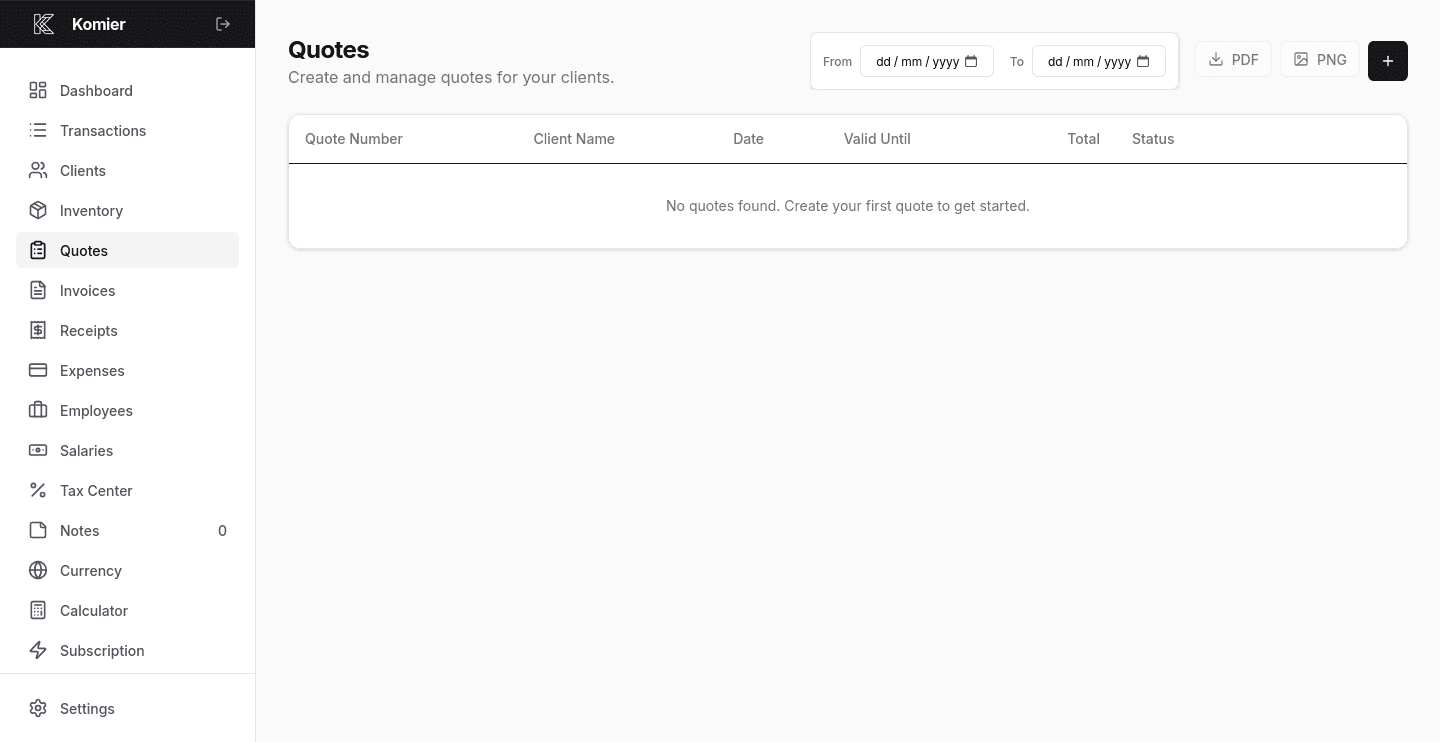
Step 1 — Open the Quote Generator

From your main dashboard, select Quotes in the left-hand navigation menu.

The interface follows the same logic as the Invoice Generator — if you have used one, the other is immediately familiar. This is intentional. Your quotes and invoices should look consistent, because they represent the same business.

komier online quote template generator

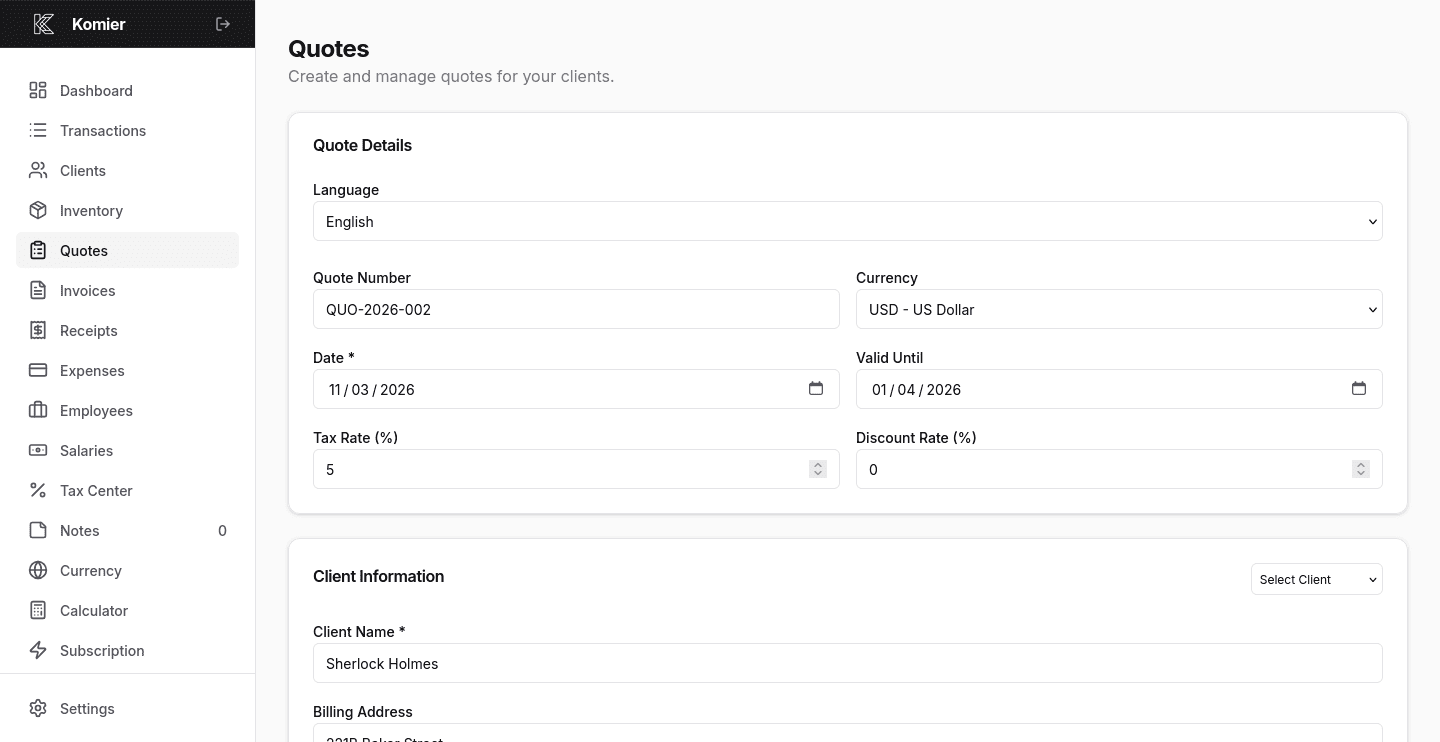
Step 2 — Add New Quote

Click on the + button at the top of the Quotes page, and fill in the details of the quote.

komier online quote template generator

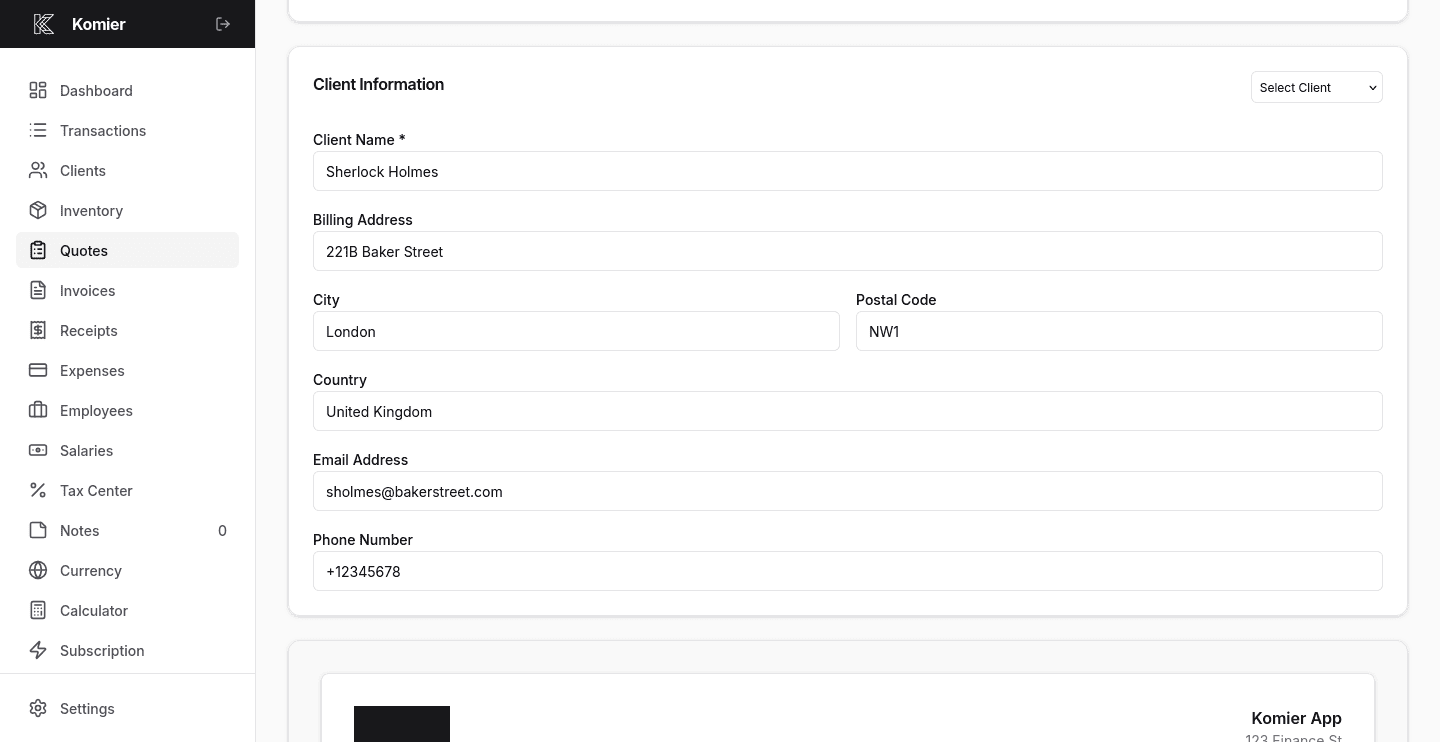
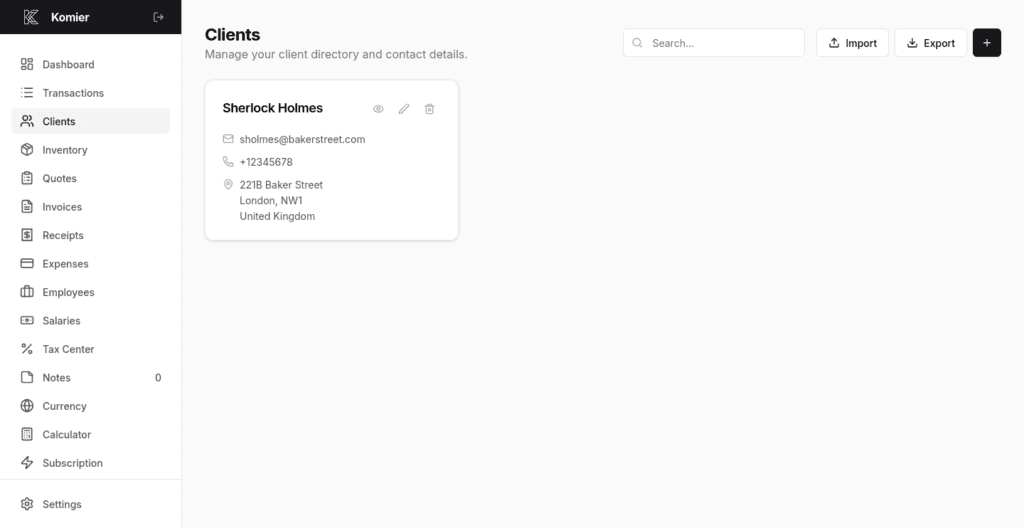
Step 3 — Select or add your client

Select the client from your saved client list or add a new one. All client details — name, billing address, email — populate automatically from your client directory.

komier online quote template generator

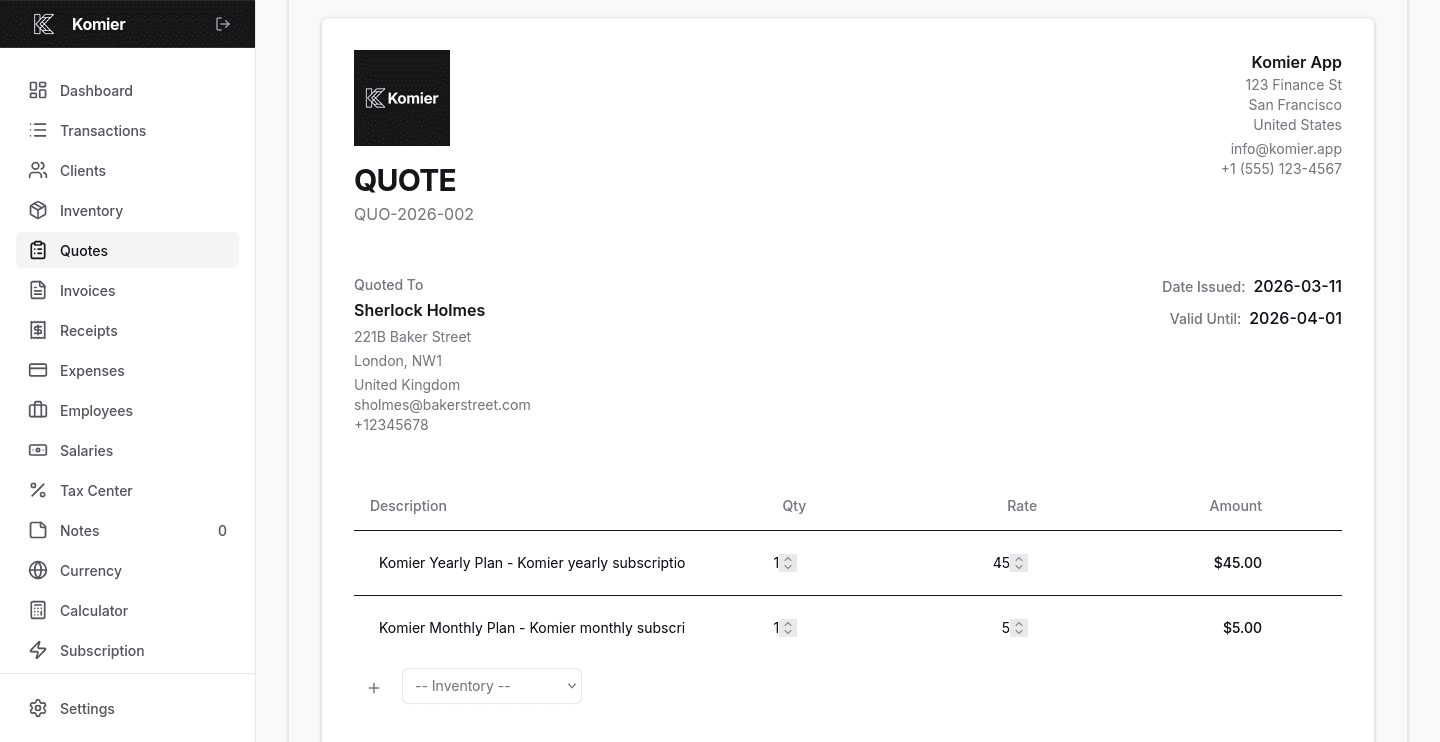
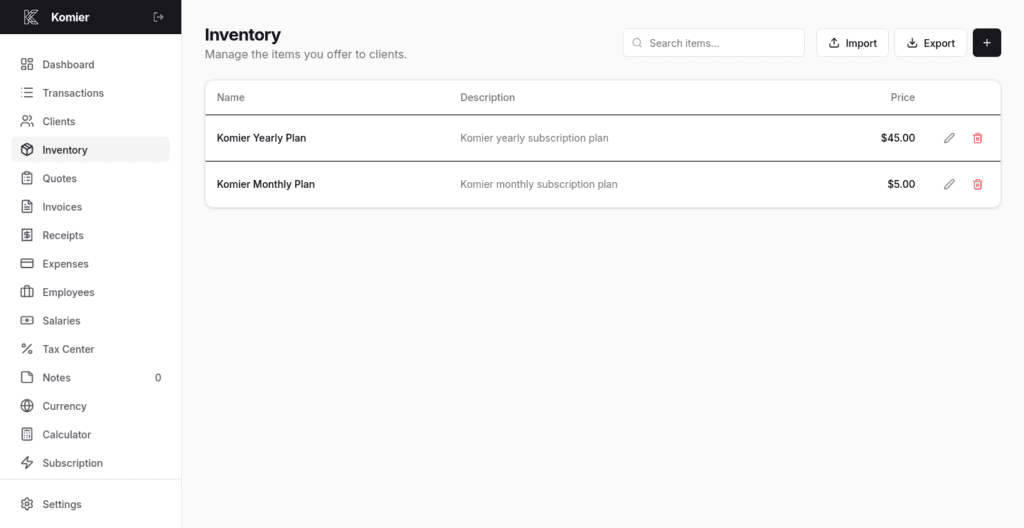
Step 4 — Add your quoted services from inventory

Select each service or product from your saved inventory. Your descriptions, unit prices, and rate logic are already stored — just set the quantity for each line. If you are quoting a bespoke scope that is not in your standard inventory, add it as a custom line directly on the quote. You can save it to inventory afterwards if it is something you are likely to quote again.

komier online quote template generator

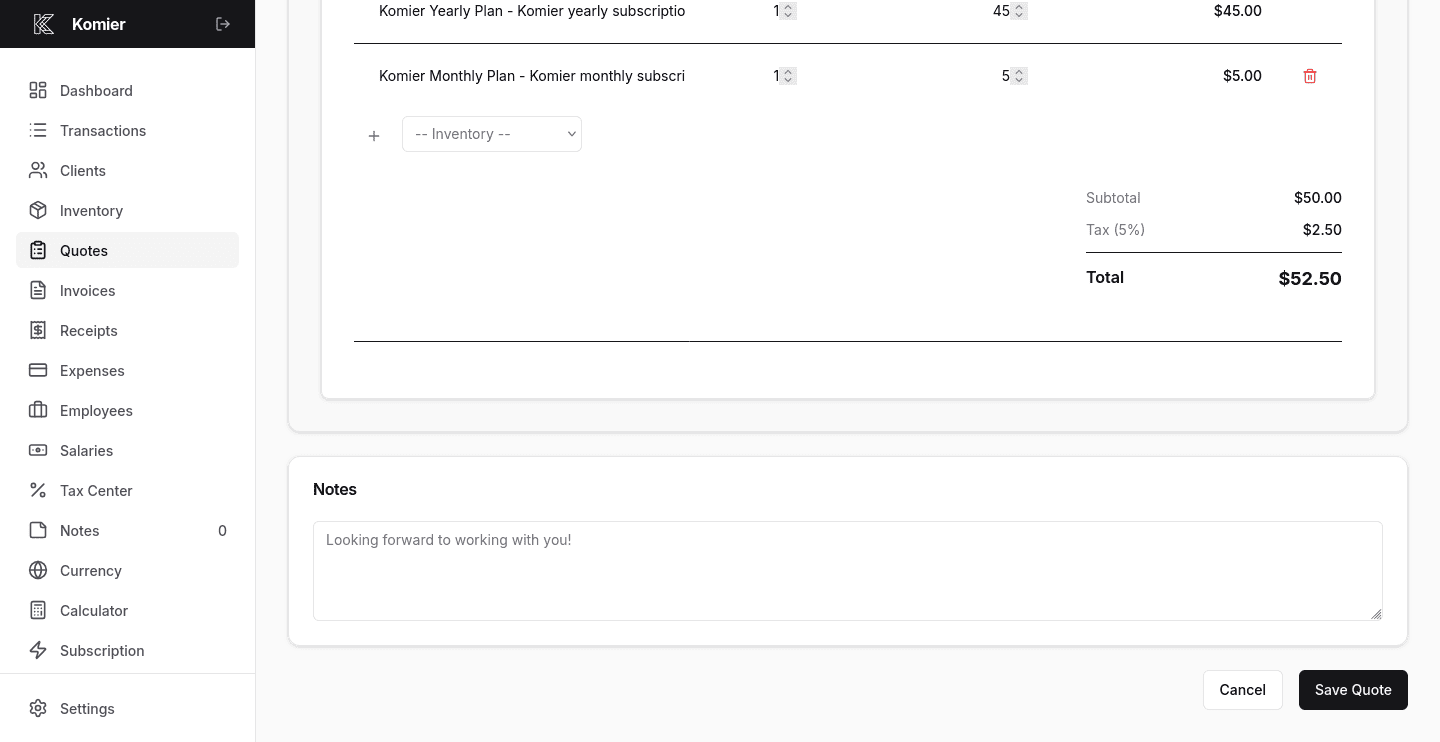
Step 5 — Add notes, conditions, payment terms, and Save

Use the Notes field to specify any assumptions, exclusions, or conditions that the quote is based on. What is included is important — but what is explicitly not included is equally important. If the quote for a web build assumes the client supplies all copy and images, say so. If a construction quote excludes groundwork, say so. Notes that protect scope are the difference between a profitable project and a costly one.

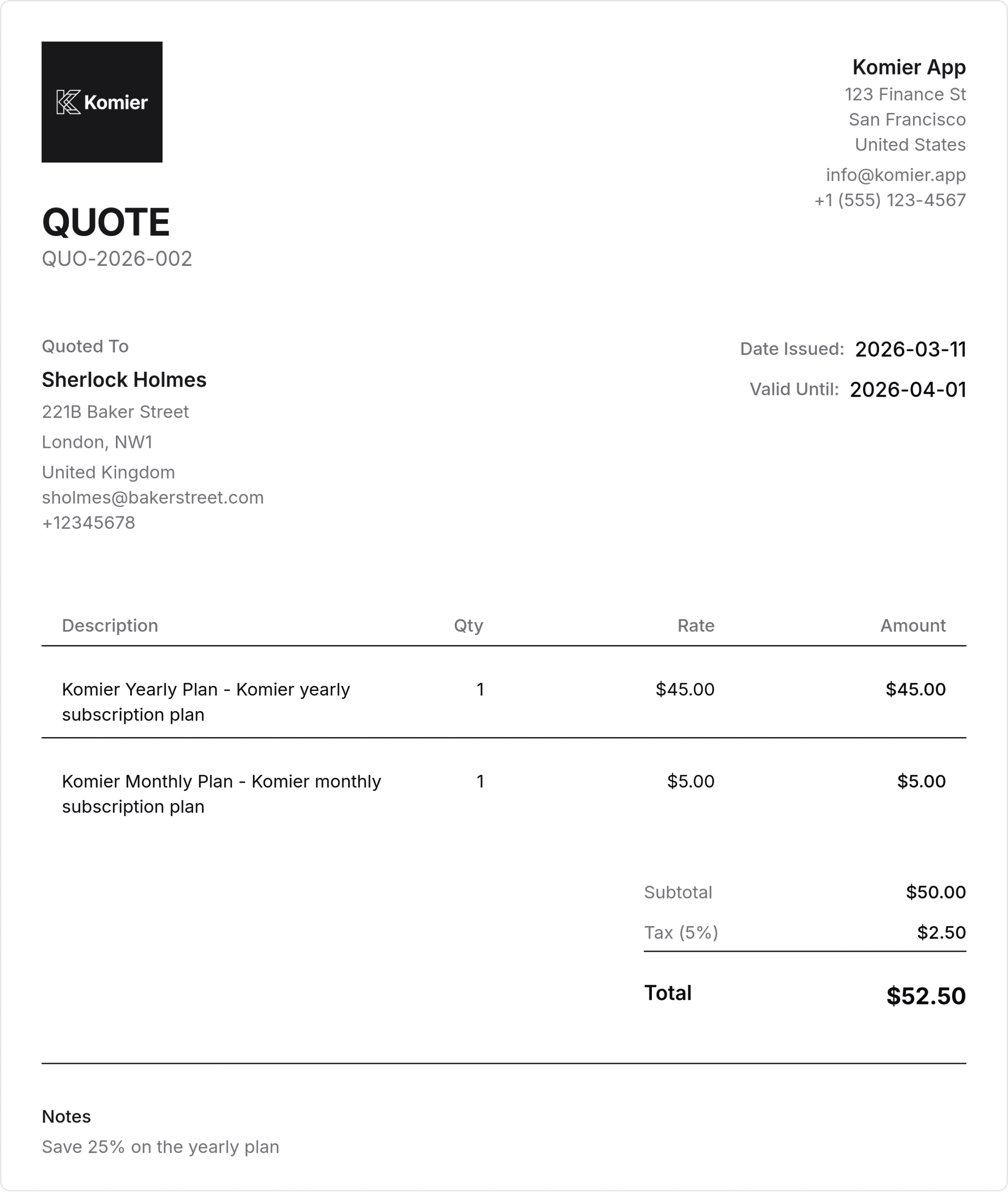
When done, click Save, and export the quote as a PDF or PNG.

The quote carries your business name, the client’s details, the full line-item breakdown, the validity date, and your payment terms — everything a client needs to make a decision, and everything you need if the scope is disputed later.

What Happens After You Save a Quote

komier online quote template generator

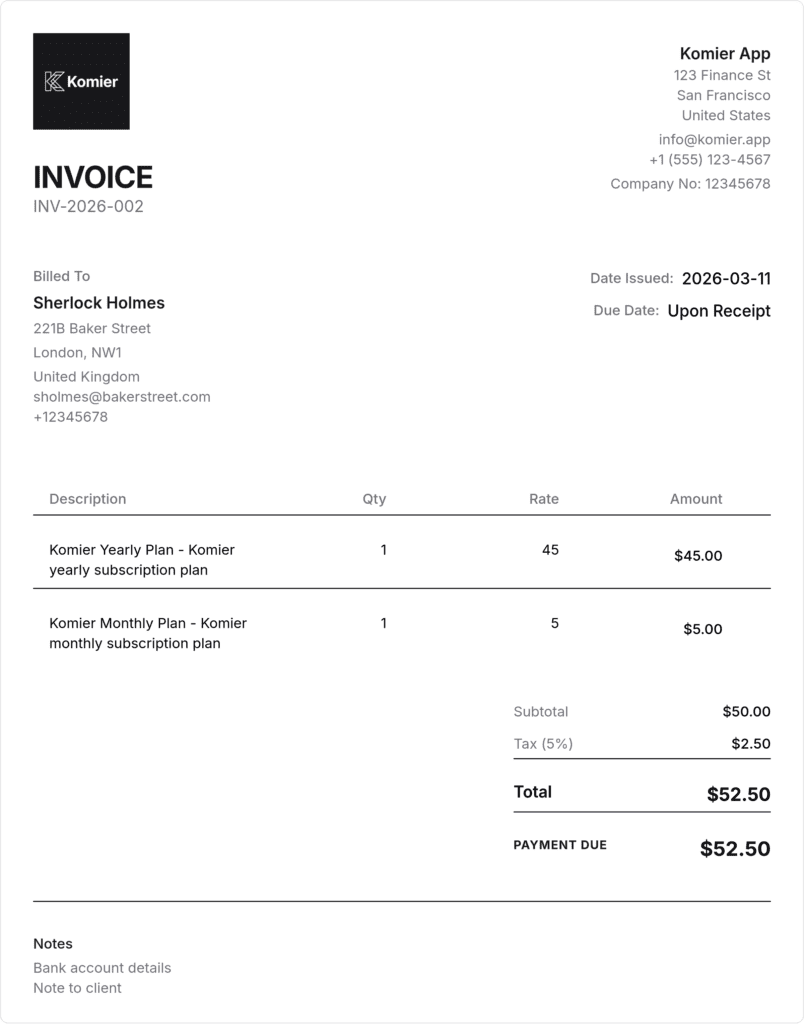
When a client accepts your quote, Komier lets you convert it directly to an invoice without re-entering any information. The line items, client details, rates, and totals carry across automatically. Turn the Quote to an Invoice in the Invoice Generator, set the invoice date and due date, and send. The quote-to-invoice workflow removes one of the most common sources of billing friction — the gap between what was quoted and what ends up on the invoice.

Generate professional quotes in minutes. Convert to invoice with one click.

Start your free 3-day trial — full access, no credit card required.

Scroll to Top