How to Use the Notes Feature on Komier — Keep Your Business Thinking Inside Your Financial Tool
Most business owners run on a combination of sticky notes, WhatsApp messages to themselves, voice memos, and half-finished to-do lists scattered across three different apps. Komier’s Notes feature does not try to replace a full project management system — it solves a narrower, more practical problem: keeping your business thinking in the same place as your financial work.
When you are in the middle of generating an invoice and remember you need to follow up on an overdue payment, you should not have to leave Komier to write that down. Notes keeps it all in one place.
What Is the Komier Notes Feature?
Notes is a lightweight, built-in notepad inside your Komier dashboard. Think of it as your business scratchpad — a place to capture anything that does not fit neatly into an invoice, expense, or payslip but belongs in your financial workflow.
It is deliberately simple. No tags, boards, or complex hierarchies.
Notes and reminders, available any time you are working in Komier, without switching tabs or opening another application.
Step-by-Step: Creating a Note on Komier
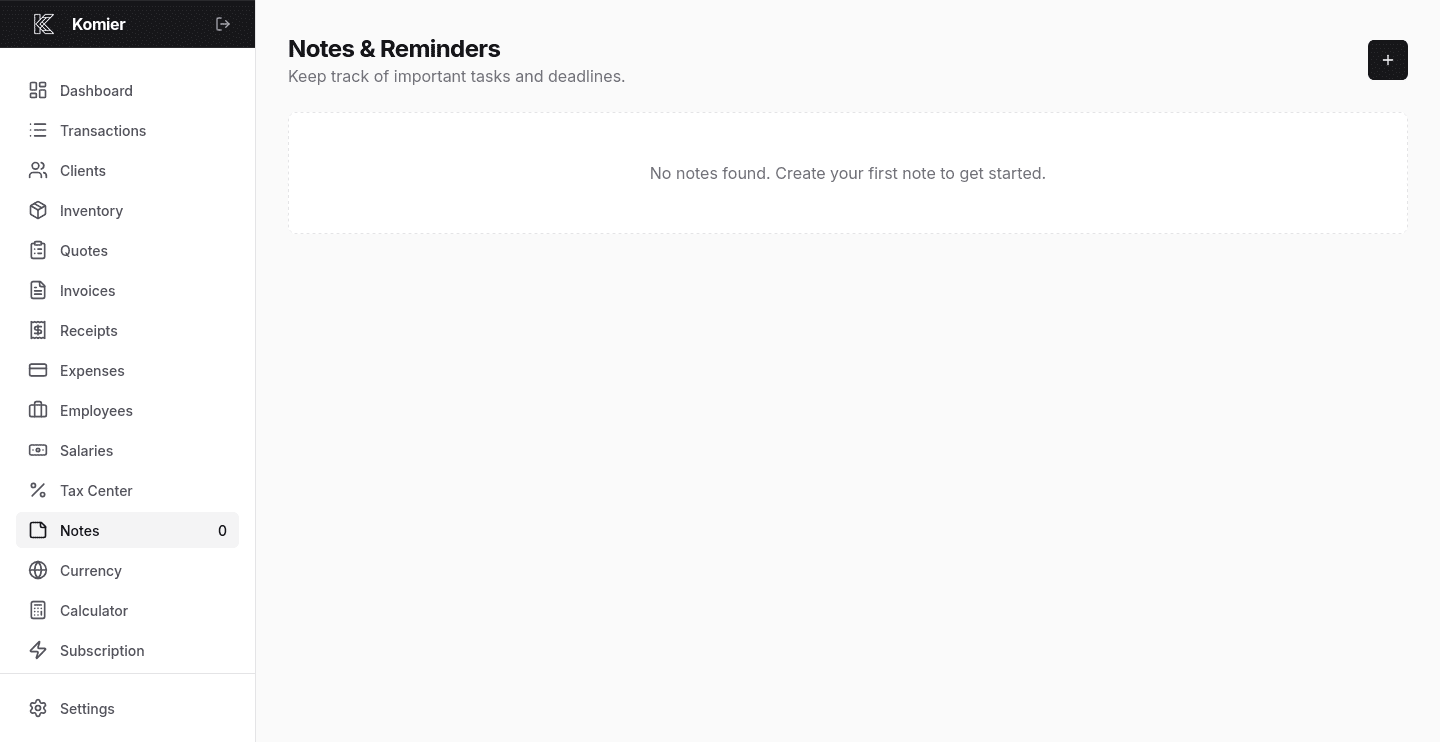
Step 1 — Open the Notes Feature
Select Notes from the left-hand navigation menu in your Komier dashboard.
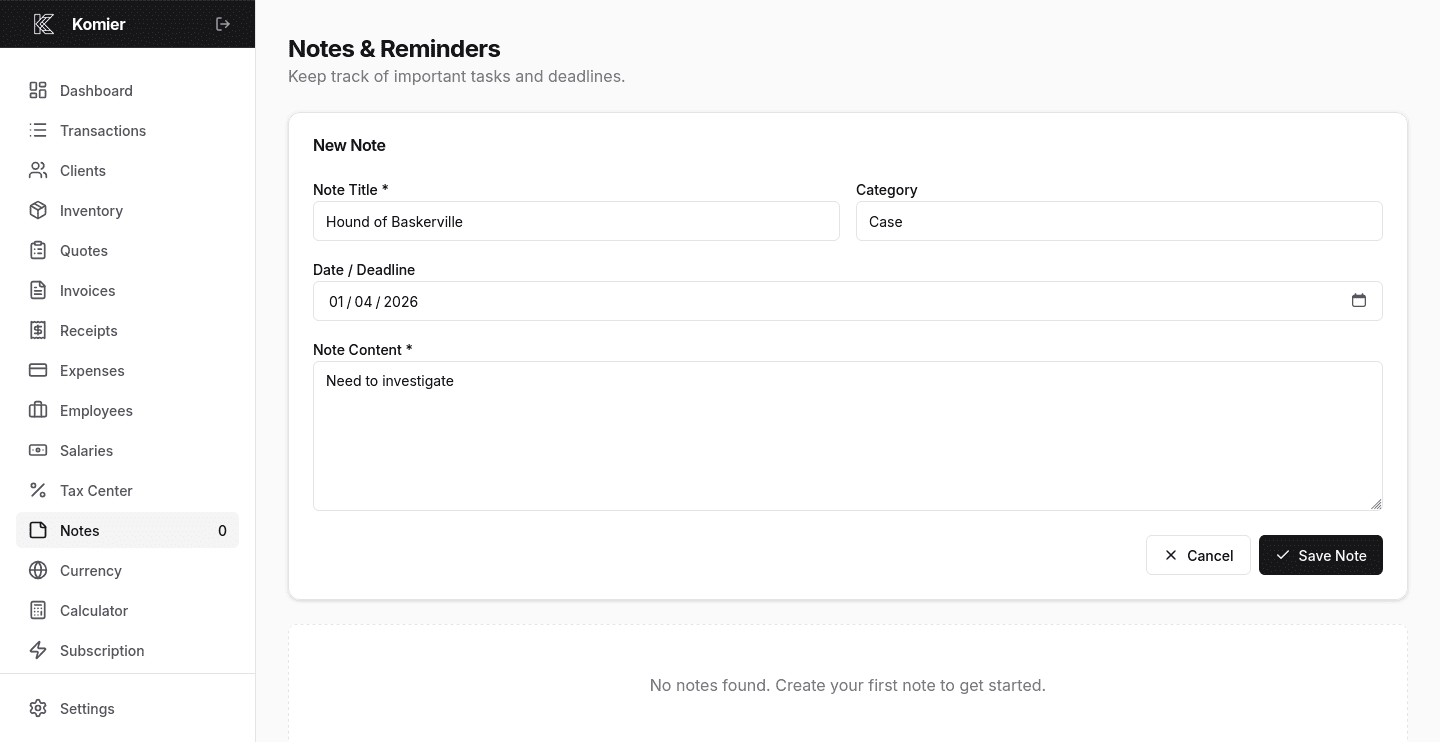
Step 2 — Add New Note
Click on the + button to open a blank note form.
A clear Note Title makes notes easy to find later. Use specific titles like ‘Client X — payment follow-up’ rather than generic ones like ‘To do’.
Under Category, give your note a label for quick references, like ‘Meeting.’
Under Note Content, enter whatever you need to capture — a reminder, a list, meeting notes, a financial calculation you want to keep, instructions to yourself, anything.
If the note requires action by a specific date, select a Deadline date. Komier will flag the note when the reminder date arrives so nothing slips through.
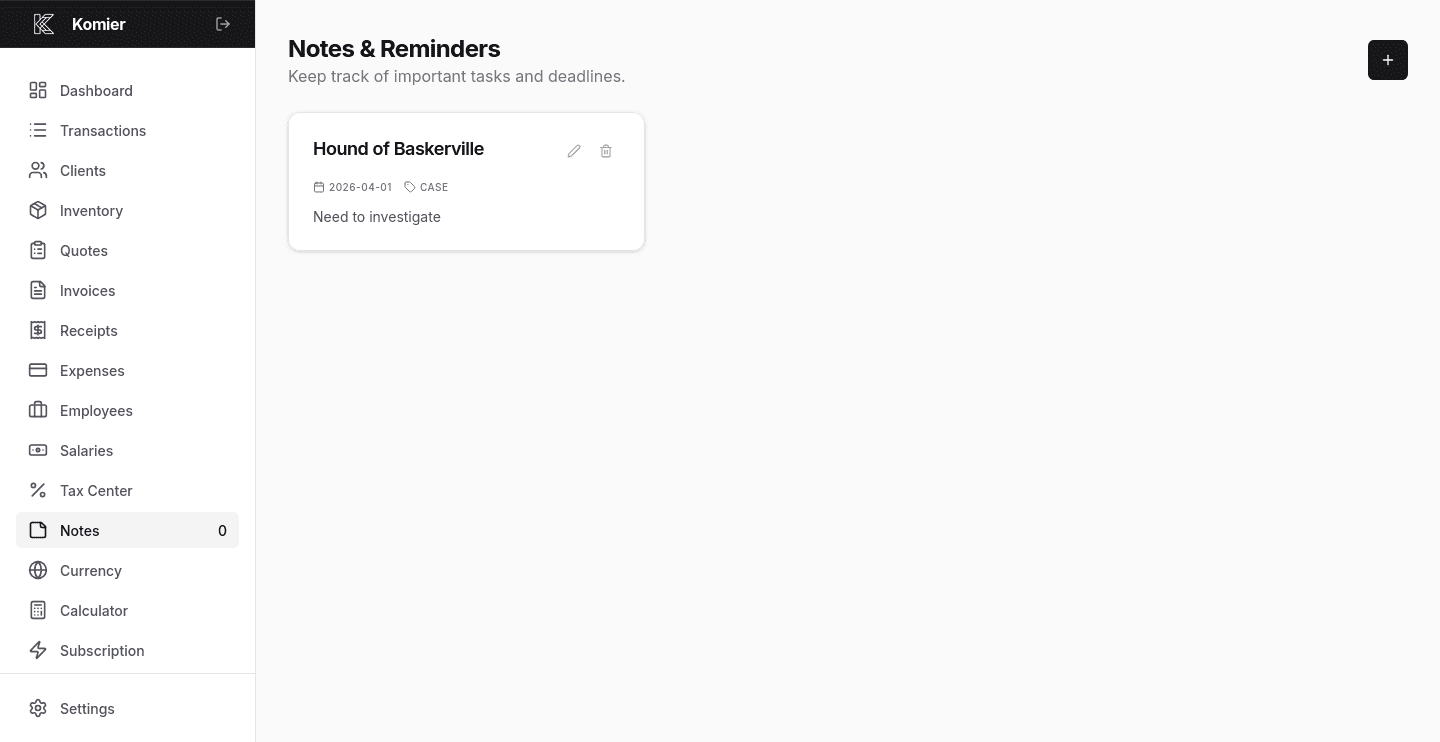
Step 3 — Save
Click Save. The note is stored in your Notes directory and accessible any time from the navigation menu.
Pro Tip: Use Notes as your financial to-do list. Every time you think of something business-finance-related — a client to chase, an expense to log, a receipt to file — add it to Notes immediately. Clear the list at the end of each week.
What to Use Komier Notes For
ecause Notes sits inside your financial dashboard, it is most useful for the kinds of thinking that connect directly to your financial work:
Payment follow-ups
When you send an invoice, add a note with the client name, invoice number, and due date. Set a reminder for the day after the due date. If payment has not arrived, you have a clear prompt to follow up — without relying on memory or hunting through your email.
Financial reminders
Log reminders for recurring financial tasks: quarterly tax estimates, monthly expense reviews, annual subscription renewals, payroll runs. Keep these in Komier alongside the financial records they relate to rather than in a separate calendar that has no context.
Meeting notes with financial context
After a client call where pricing, project scope, or payment terms were discussed, write a brief note while the conversation is fresh. Having those details in Komier means they are available the next time you open that client’s invoice or receipt history.
Calculations and working notes
Drafting a quote and working through the numbers? Thinking about whether to raise your rates? Estimating what a new hire will cost? Use Notes to work through the thinking before committing it to an invoice or payslip. It is your working space.
Business to-dos that live in your finances
Things like ‘update business address on invoice template’, ‘add new service to inventory’, ‘check if client X has paid invoice 47’ — small operational tasks that belong in the context of your financial tool, not floating in a separate task manager.