How to Add Employees on Komier — Set Up Your Team Once, Generate Payslips Forever

Komier’s employee management system works on the same principle as its client management: save the details once, and the platform handles the rest. Add an employee with their salary structure, overtime rates, and deduction details, and generating their payslip each month becomes a matter of seconds rather than a manual calculation exercise.

This guide walks through how to add employees to Komier and what information to include for accurate, professional payslip generation.

Why Employee Records Matter in Komier

For any business with staff, payroll is a monthly obligation — and in most markets, issuing payslips is a legal requirement, not optional. The common workaround for small businesses is a Word or Excel template filled in manually every month: employee name, base salary, overtime hours, deductions, net pay — all calculated by hand and formatted individually.

Komier replaces this entirely. Once an employee's record is saved with their salary structure, the platform calculates their payslip automatically every time. Say goodbye to manual arithmetic and risk of calculation errors.

Step-by-Step: Adding an Employee on Komier

komier online employees management

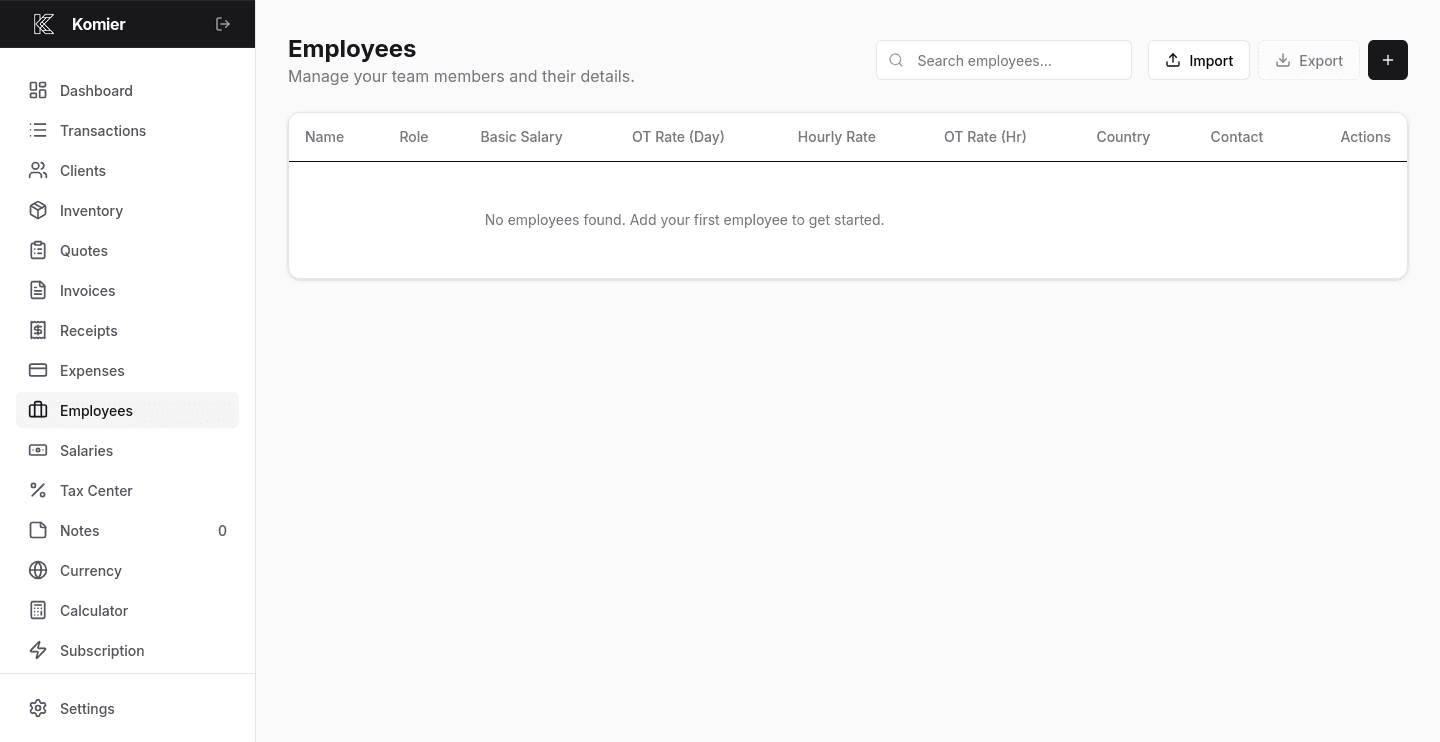
Step 1 — Open the Employees management

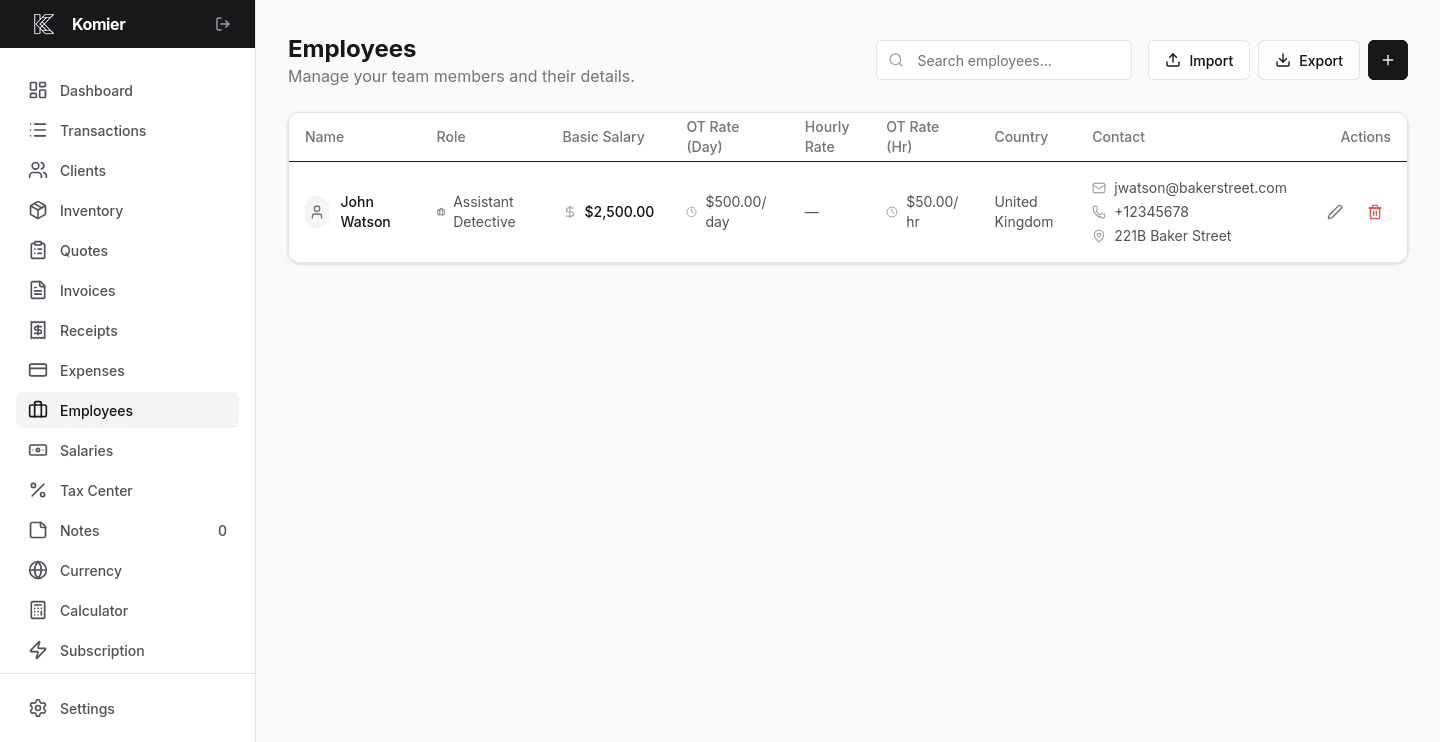
Select Employees from the left-hand navigation menu in your dashboard.

komier online employees management

Step 2 — Add New Employee

Click on the + button to open a blank employee record form.

komier online employees management

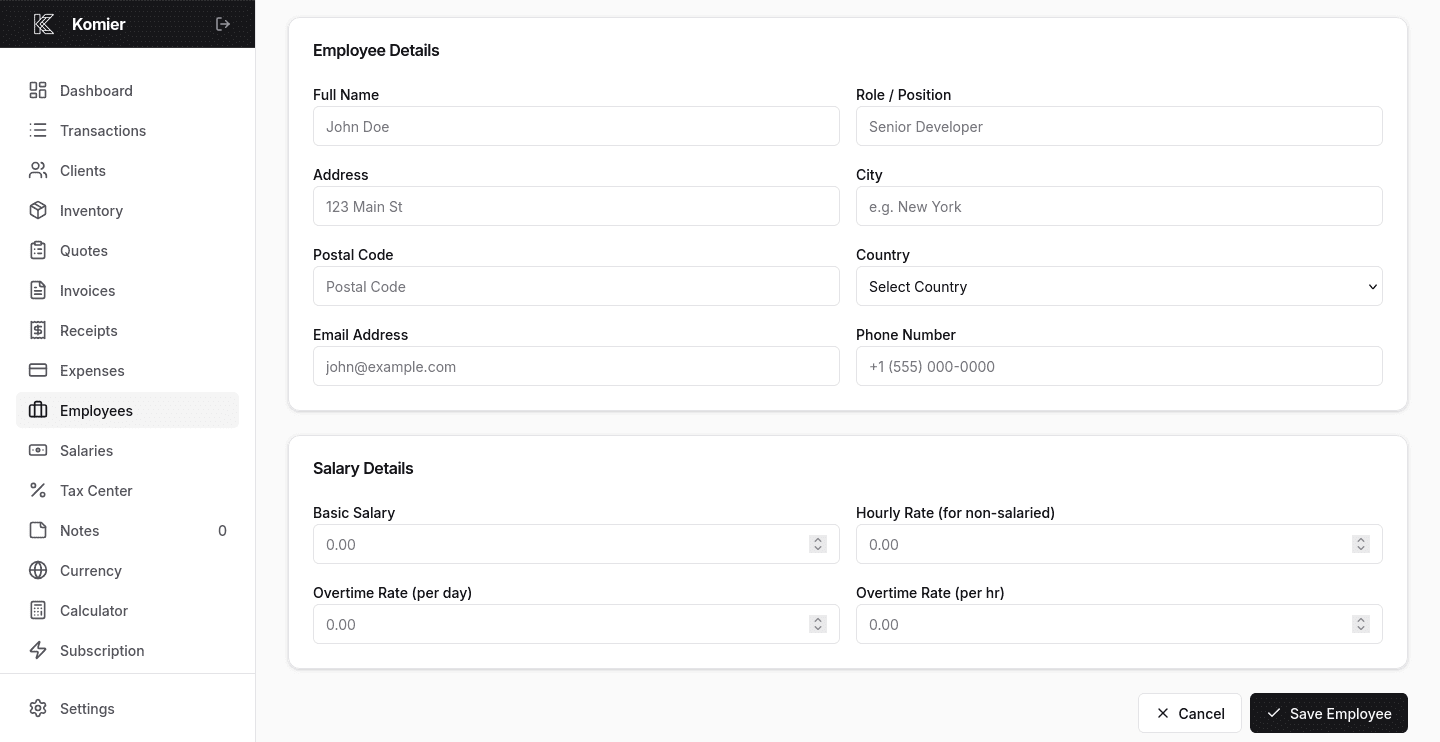
Step 3 — fill the employee details

  • Use their legal name as it should appear on payslips.

  • Adress, email address and phone number. These are for your records and for sending payslips.

  • Enter the employee’s standard monthly or weekly base salary. This is the foundation of every payslip calculation.

  • If the employee is eligible for overtime, enter their hourly overtime rate. Leave blank if not applicable.

  • If overtime is calculated on a per-day basis, enter the daily rate. Komier supports both per-hour and per-day overtime simultaneously for flexible pay structures.

  • Enter any regular deductions — pension contributions, health insurance, tax withholding, or any other applicable deductions. Label each clearly.

  • Click Save. The employee is now stored in your system and available for payslip generation immediately.

Pro Tip: Add every employee before you need to run payroll for the first time. Set aside 30 minutes to enter all your team members and their pay structures, and your first payroll run in Komier will be the smoothest you have ever done.

Editing Employee Records

komier online employees management

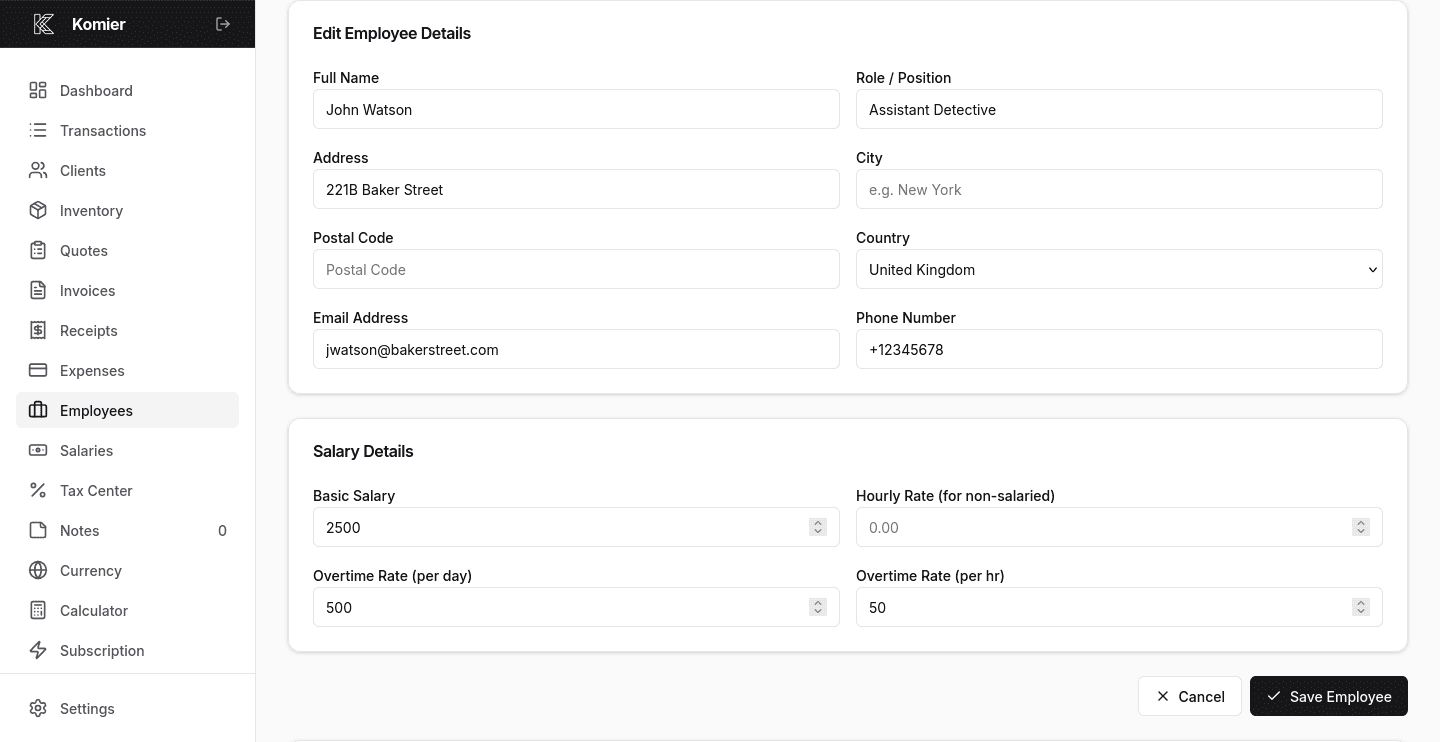
Salary structures change. Employees get raises, deductions are adjusted, job titles update. In Komier, you can edit any employee record at any time from the Employees section. Changes apply to all future payslips — past payslips retain the details they were generated with, so your historical records stay accurate.

Komier places no cap on the number of employees you can add. Whether you have 2 employees or 50, all records are included in your $5 per month or $45 per year subscription.

What Comes Next

Once your employee records are saved, you are ready to generate payslips. See the next Blog in this series for a complete step-by-step guide to Komier’s payslip generator.

Ready to set up your team on Komier?

Start your free 3-day trial — full access, no credit card required.

Scroll to Top